Generate reports from an archived database
Add an archived UserLock database and generate reports from it, alongside your production database.
Before you add an archived database, make sure that:
The database already exists. The database wizard cannot create an archived database.
The database is not the production database.
The UserLock server can reach the database. The connection is made from the server, not from the console. For a database file, such as a SQLite or Microsoft Access database, the path must be valid on the UserLock server.
You have the connection details of the database.
Databases created with earlier versions of UserLock can be added.
Archived databases are visible only to the administrator who adds them. To use the same archived database, each administrator must add it.
Open any report page.
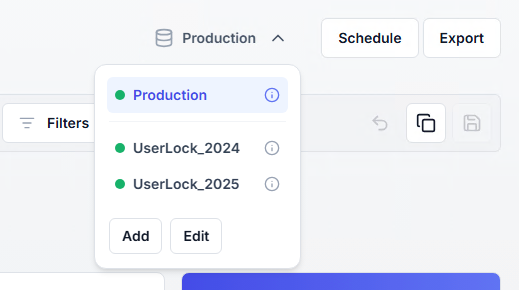
Open the database selector, to the left of the Schedule and Export buttons.
Click Add.
Complete the database wizard:
Provider: select the type of the database.
Database: enter the connection details of the existing database. See Connection details by provider.
Name: enter the name to display in the database selector, for example UserLock_2024.
Confirmation: check the summary, then click Confirm and apply.
The database is checked when you click Continue on the Database step, and again when you click Confirm and apply. If it does not exist, does not contain UserLock data, or is the production database, an error message is displayed and the archived database is not added.
The archived database appears in the database selector with its connection status. When you add it from the database selector, it is also selected automatically.
Open the report you want to generate.
Open the database selector and select the archived database. A database with a red status cannot be selected.
Set the time range of the report between the First activity and Last activity dates of the archived database, shown when you hover over the information icon next to it in the database selector, or in the Archived databases drawer. With a relative time range, such as Last 7 days, the report may be empty.
The report is generated from the archived database. The selector turns dark and shows the name of the selected database.
The selection applies to all report pages. It stays active until you select Production in the database selector.
When you export the report, the file is generated from the selected archived database.
⚠️ Important
Scheduled reports always run on the production database, whatever database is selected. To keep a report generated from an archived database, export it.
Open any report page.
Open the database selector and click Edit.
The Archived databases drawer lists your archived databases.
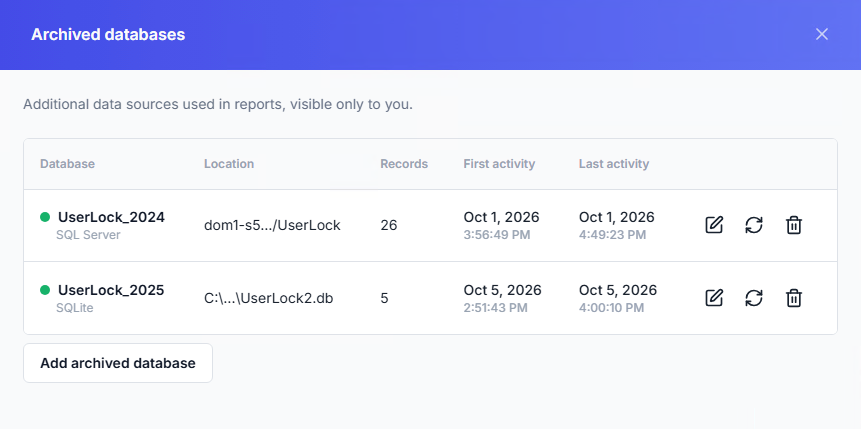
From the drawer, you can:
Change the settings of an archived database: click the pencil icon.
Test the connection again and update Records, First activity, and Last activity: click the circular arrows icon.
Remove an archived database from the list: click the trash icon, then confirm. The database itself is not deleted. If this database is selected, reports switch back to the production database.
Add another archived database: click Add archived database.
When the connection check fails, the archived database shows a red status and is grayed out in the database selector. For the meaning of each status, see Reporting.
To find the cause, hover over the information icon of the database in the selector. It shows the date of the last connection check and the error reason.
If the production database is unreachable, the report page shows a button that opens Server settings ▸ Database, where you can check its connection settings. The same link is available when you hover over the information icon next to Production in the database selector, if you have permission to view the server settings.
If the selected database becomes unreachable, the report page shows an error message instead of the report, and the status indicator in the selector turns red. The message includes a status code and details that help identify the cause, for example a database file that cannot be opened. Two actions are available:
Refresh: retries the connection.
Switch back to the production database: selects the production database again.
To fix the connection:
Open the database selector and click Edit.
In the Archived databases drawer, click the pencil icon next to the database and correct the connection settings, for example the path of the database file on the UserLock server.
Click the circular arrows icon to test the connection again.
Each time you open the database selector, databases in error are tested again. When the database is reachable again, the report reloads automatically.