Configure FIDO2 security keys for MFA
Enable FIDO2 security keys as an MFA method in UserLock, set the relying-party ID and choose when users must enter their key's PIN.
A FIDO2 security key is a physical device, such as a YubiKey or a Token2 key, that users plug into a USB port or tap on an NFC reader to complete MFA. The key signs each authentication with a private key that never leaves the device: there is no code to type, intercept or reuse. By default, users only touch or tap the key. You can also require the key's PIN at every sign-in.
Users can authenticate with a security key on:
Windows local and RDP sessions
UAC elevation prompts
RD Gateway, RDWeb and RemoteApp
IIS applications
SaaS applications
Before you deploy security keys, check these points:
Relying-party ID: each key is bound to the RP ID at enrollment. Changing it later forces every FIDO2 user to enroll again.
Offline sign-in: users can sign in when the UserLock server cannot be reached, but only on computers where they already signed in online with their key.
Remote Desktop: security keys work over RDP only with supported session hosts and clients.
Fallback methods: a security key can be combined with a second security key, an authenticator app (TOTP) or recovery codes. It cannot be combined with HOTP tokens or the UserLock Push app.
UserLock Server 13.1 or later
The UserLock Desktop Agent 13.1 or later must be installed on the workstation.
A FIDO2 / CTAP2 security key, connected over USB or used with an NFC reader. The key must be protected by a PIN; if it has no PIN yet, users will be prompted to create one during enrollment.
A relying-party ID (RP ID) is required to enable FIDO2 security keys.
For RDP / RemoteApp sessions, the security key is read on the client computer, so:
Session host OS | Minimum build |
|---|---|
Windows Server 2025 | All builds |
Windows Server 2022 | 20348.1070 |
Windows 11 22H2 or later | 22621 |
Windows 10 21H2 | 19044.2075 |
Note
Windows Server 2019 does not redirect security keys into the session. Users cannot sign in with a security key over RDP on these session hosts.
Users must connect with
mstsc.exe, the Windows App, or Hyper-V VMConnect in enhanced session mode. VMConnect basic session, the Microsoft Store "Remote Desktop" app and most third-party clients do not redirect security keys.WebAuthn redirection must be allowed. It is allowed by default: check that the GPO Do not allow WebAuthn redirection is not enabled on the session hosts (Computer Configuration ▸ Administrative Templates ▸ Windows Components ▸ Remote Desktop Services ▸ Remote Desktop Session Host ▸ Device and Resource Redirection).
For IIS, the app must be protected with the IIS MFA agent.
For SSO, the UserLock IIS MFA app is used and need to be configured.
FIDO2 security keys are bound to a relying-party ID (RP ID), a domain name such as corp.intra. When you enable the method, UserLock derives the RP ID from the IIS MFA URL: https://auth.corp.intra/ulmfa gives corp.intra. You can also set it manually in Settings ▸ MFA.
The IIS MFA URL must use HTTPS and a domain name.
Disabling and re-enabling FIDO2 keeps the RP ID. Enrolled keys keep working.
⚠️ Important
Choose the RP ID before users enroll. Each key binds its credential to the RP ID at enrollment. Changing the RP ID later invalidates every enrolled key, and you must reset the MFA configuration of every user enrolled with FIDO2.
Open the UserLock Console.
Go to ⚙️ Settings ▸ MFA.
Under MFA methods, enable MFA with FIDO2 security keys.
Confirm the RP ID domain the keys will be tied to (for example
corp.intra). UserLock can resolve this automatically from your environment, or you can set it explicitly.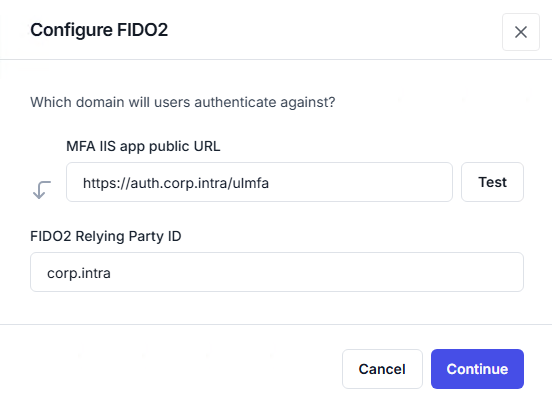
Save the configuration.
Note
These settings can also be managed with PowerShell on UserLock Server 13.1 or later. See Manage UserLock with PowerShell.
By default, users only touch or tap their key at sign-in. To require the key's PIN at every sign-in, change the FIDO2 user verification setting.
⚠️ Important
Advanced settings can affect UserLock stability and security. Change only the FIDO2 user verification setting on this page.
Go to ⚙️ Settings ▸ Advanced settings.
The default is Discouraged: at sign-in, the user usually just touches or taps the key. Set it to Required to demand the key's PIN at every sign-in.
Save the configuration.
The PIN is always required at enrollment and for offline sign-in, whatever this setting.
Users enroll the next time they sign in under an access policy that requires MFA. Apply an MFA policy to the users or groups who will use security keys. See Access policy management and the MFA policy reference.
Offline sign-in with a security key works only on a computer where the user has already signed in online with that key. Enrollment counts as the first online sign-in on the enrollment computer.
Users who work on several computers must sign in online once on each computer they need to use offline.
Offline sign-in always requires the key's PIN, whatever the FIDO2 user verification setting.
An MFA reset reaches a computer only at its next contact with the UserLock server. See Replace a lost or stolen security key.
Share the end-user guide: Enroll users with a FIDO2 security key.
Ask users to have their key at hand at their next sign-in. If the key has no PIN, they create one during enrollment.
Recommend a fallback method: a second security key, an authenticator app or recovery codes.
Users already enrolled with another MFA method need an MFA reset before they can enroll a key.
For users who work outside the corporate network, see Enroll remote users.
Reset the user's MFA configuration.
Ask the user to enroll their keys again at their next sign-in. See Enroll users with a FIDO2 security key.
The reset removes all the user's security keys, including a backup key that was not lost. The user must enroll each key again: the replacement key and the backup key.
⚠️ Important
A computer applies the reset only at its next contact with the UserLock server. Until then, the lost key can still be used to sign in offline on that computer. Make sure the user's computers contact the UserLock server as soon as possible.
After enrolling, the user must sign in online once on each computer they need to use offline.