Deploying an agent
UserLock agents are required to enforce access policies and track user sessions. The easiest way to deploy them is directly from the UserLock console. For advanced scenarios (IIS, NPS, or manual deployment), see the linked guides.
Useful resources
In the UserLock console, go to Environment ▸ Machines.
Select one or more machines and click on the Actions button.
In the menu, click to Install the Desktop, IIS or NPS agents.
In the upper right corner, the Admin action icon animates. Click it to monitor the installation progress.
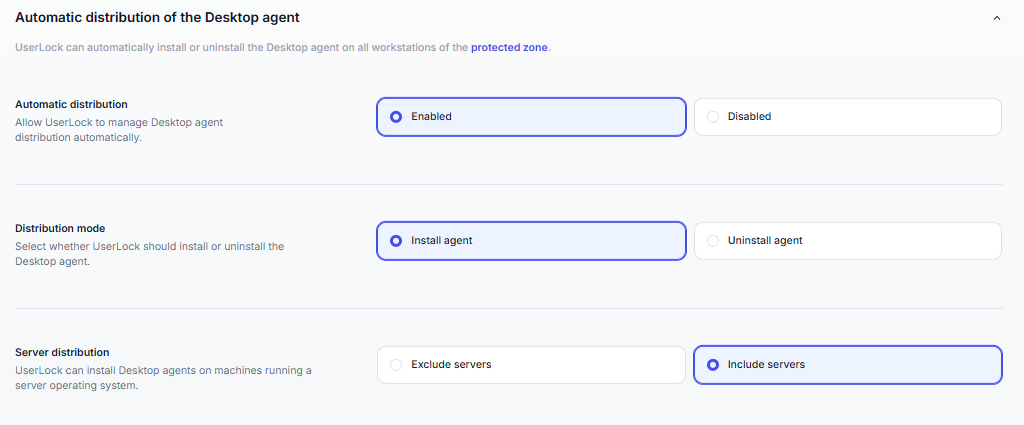
Instead of deploying the Desktop agent manually on each workstation, you can let UserLock handle the distribution automatically.
In the upper right corner of the UserLock console, click the Settings icon.
In the left menu, click Machines.
Under Automatic Desktop agent deployment, select one of these modes:
Install the Desktop agent on workstations: servers are skipped.
Install the Desktop agent on workstations and servers: machines running a server OS are included.
Optionally, enable Automatic start of the remote registry service. This avoids deployment failures on machines where the service is stopped.
Save your changes.
UserLock then deploys the Desktop agent on every machine in the protected zone. This covers the machines already in the zone and the ones added later.
Note
For the uninstall mode, reboot settings and deployment prerequisites, see Machines.
Agents can also be installed manually in cases where console deployment is not possible. Options include:
Running the installer locally on the machine.
Deploying through a script.
Using Group Policy (GPO).
Manual deployment is typically used for advanced or large-scale scenarios.
See the following guides to help you through manual installation.