UserLock Consoles
Compare the UserLock Desktop Console and Web Console, change the interface language, and adjust the display size.
The consoles are the primary way to manage UserLock. They allow administrators to:
Configure UserLock access policies and settings.
Manage the UserLock agents.
Monitor active sessions across the network.
Respond to security incidents in real time.
Assist users with MFA requests and access issues.
Generate, export, and analyze reports.
✅️ Automatically installed on the same server as UserLock.
✅️ No additional setup or configuration required.
⚙️ Runs under the same permissions as the UserLock Server service.
Note
Until version 12.2, the Desktop Console could be installed on any workstation for remote management.
Since version 13.0, it is restricted to the UserLock Server host to enhance security by limiting administration to controlled environments.
Use the Web Console for remote administration.
✅️ Required for remote administration.
✅️ Identical functionality to the Desktop Console.
✅️ Can be installed on the same server or another Windows host with IIS role.
✅️ Accessible from any modern browser (Edge, Chrome, Firefox).
✅️ Centralized management without requiring additional desktop installations.
Note
For details on how to install the Web Console, see the installation guide.
For troubleshooting common issues, see the troubleshooting guide.
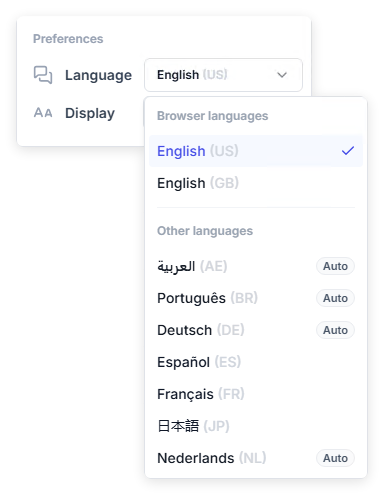
The console interface is available in the following languages:
English (US and GB, which differ in date and number formats)
French
Spanish
Japanese
German
Portuguese (Brazil)
Dutch
Arabic (right-to-left interface)
The console language is set in the options menu (⋮), under Preferences > Language.
It is a personal preference: it applies only to your administrator account and does not affect other administrators.
Note
Auto-translated languages are marked Auto in the list and may contain inaccuracies. To report a translation error, use Help > Contact our support in the options menu.
The display size is set in the options menu (⋮), under Preferences > Display.
It is a personal preference: it applies only to your administrator account and does not affect other administrators.
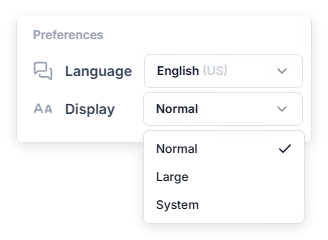
Option | Behavior |
|---|---|
Normal | Standard interface size. |
Large | Increases the size of the interface to 125%. |
System | Follows the display size setting of the operating system. |
Permissions to access and use the consoles are managed in the Permissions section of the UserLock server properties.
The same permissions apply to both the Desktop Console and the Web Console.
Administrators can grant or restrict rights to delegate specific actions.