Reporting
Monitor user and machine activity with audit reports you can view in real time, export, or schedule for automatic delivery.
Policies reports provide detailed logs of Multi-Factor Authentication (MFA) events and logon attempts denied by access policies. They help administrators monitor access control and identify potential security risks.
The following reports are included:
MFA events: all MFA attempts (success, failure, skipped, cancelled, help requests).
Denied logons: failed or denied logon attempts, whether blocked by Active Directory (e.g., bad password) or by UserLock access policies (e.g., unauthorized machine, hours, quota, geolocation, group limits).
Typical use cases
Identify repeated MFA failures that may indicate suspicious behavior.
Detect users skipping MFA configuration or requesting help too often.
Monitor denied logons to verify that access policies are enforced correctly.
History reports provide a detailed timeline of user activity and session events across the network.
The following reports are included:
Events timeline: all session events in chronological order.
Session history: complete log of user sessions (open, closed, incomplete).
Simultaneous sessions: domain users with overlapping sessions.
Single Sign-On events: SSO activity by user or application.
Wi-Fi / VPN sessions: network sessions by connection type (with RADIUS if configured).
IIS sessions: web application activity by pool or application name.
UAC events: granted or denied privilege escalation requests.
User status changes: transitions between statuses (e.g., risky).
Typical use cases
Trace a user’s full activity timeline to investigate incidents.
Identify users with multiple simultaneous sessions that may bypass restrictions.
Review VPN or Wi-Fi connections to ensure compliance with remote access policies.
Audit Single Sign-On events for visibility into SaaS access.
Track User Account Control (UAC) prompts for privilege escalation attempts.
Working hours reports summarize user activity over time, including daily, weekly, and monthly breakdowns. They highlight when users are active, inactive, or connected outside authorized hours.
The following reports are included:
History: daily overview of hours worked.
Statistics by user: one row per user for the selected period, with average first logon and last logoff times, and total session, active, and locked times. Expand a row to see the user's details day by day.
Statistics by date: one row per day, with the same statistics across all users. Expand a row to see each user's details for that day.
Week / Month: aggregated activity for a period, per user.
Unauthorized: activity outside authorized working hours.
Typical use cases
Verify compliance with authorized working hours policies.
Detect abnormal overtime or suspicious night/weekend activity.
Provide HR or compliance teams with activity statistics.
Compare working patterns between users with Statistics by user, or spot unusual days with Statistics by date.
Note
Locked session times are counted between first logon and last logoff of the day.
IIS sessions are excluded from these reports.
Administration reports provide audit logs of administrator actions and configuration changes.
They ensure accountability and support compliance requirements.
The following reports are included:
Actions: log of administrator operations such as agent installations, machine reboots, user MFA resets, or session terminations.
Configurations: changes to access policies, MFA settings, user blocks/unblocks, or server settings/updates.
Typical use cases
Track changes to access policies or server settings.
Monitor administrator actions on sessions, users, or machines.
Provide audit evidence for compliance reviews.
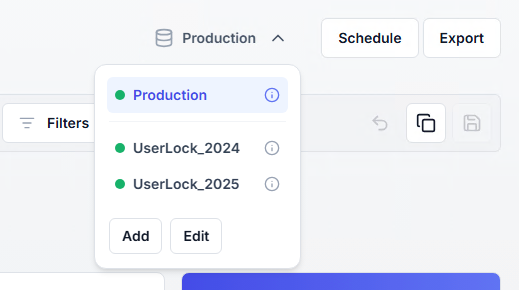
By default, reports are generated from the production database. Each administrator can also add archived databases, such as a former database kept after a database migration or a yearly archive, and generate reports from them. Archived databases are used only for reporting.
Archived databases are specific to the administrator who adds them and are not shared with other administrators. The database selected for reports is saved locally by the console, not on the UserLock server.
The database selector is located on each report page, to the left of the Schedule and Export buttons. Production is always listed first and selected by default.
⚠️ Important
Exports are generated from the selected database. Scheduled reports always run on the production database, whatever database is selected.
Each source in the selector, including production, shows a status indicator:
Indicator | Meaning |
|---|---|
Green | The last connection check succeeded. |
Red | The last connection check failed. An archived database in this state is grayed out and cannot be selected. |
Gray | The connection has not been checked yet. |
The following rules apply to archived databases:
The database must already exist: the database wizard cannot create one.
The database must contain UserLock data. A database without UserLock tables is rejected.
Databases created with earlier versions of UserLock can be added.
The production database cannot be added as an archived database, even with a different account.
Each archived database in your list must have a unique name, and the same database cannot be added twice.
Passwords are encrypted on the server and are never sent back to the console.
To add, manage, or troubleshoot an archived database, see Generate reports from an archived database.
Every report in UserLock supports flexible customization to fit your monitoring needs:
Views | Each report provides predefined views for common scenarios. You can save your own report views with tailored filters and settings. |
|---|---|
Columns | Any report column can be shown or hidden, depending on your needs. |
Filters | All reports can be filtered on available columns (e.g., by user, machine, domain, event type, country, organizational unit). |
Grouping | Results can be grouped by attributes such as user, machine, date, or session type, helping to summarize large datasets. |
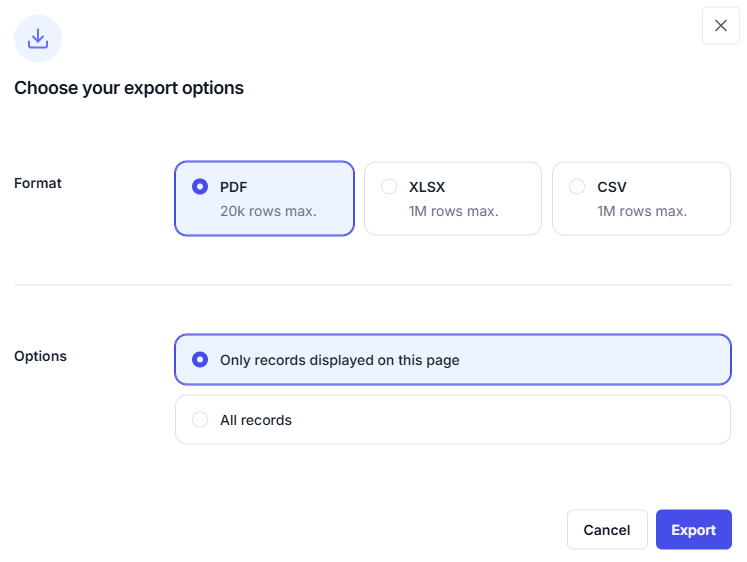
All reports can be exported in PDF, Excel (XLSX), or CSV formats.
Typical use cases
Share audit evidence with compliance teams.
Provide managers with scheduled weekly activity summaries.
Export raw data to Excel or CSV for further analysis.
Note
The exported file is saved to the server's Export folder. The behavior depends on the console:
Windows Console: the folder containing the exported file opens.
Web Console: PDF files open in a new tab, and Excel and CSV files are downloaded by the browser. In all cases, the file is then automatically deleted from the server's Export folder.
Reports can be scheduled for automatic delivery or archival.
Schedules are based on saved report views, and define:
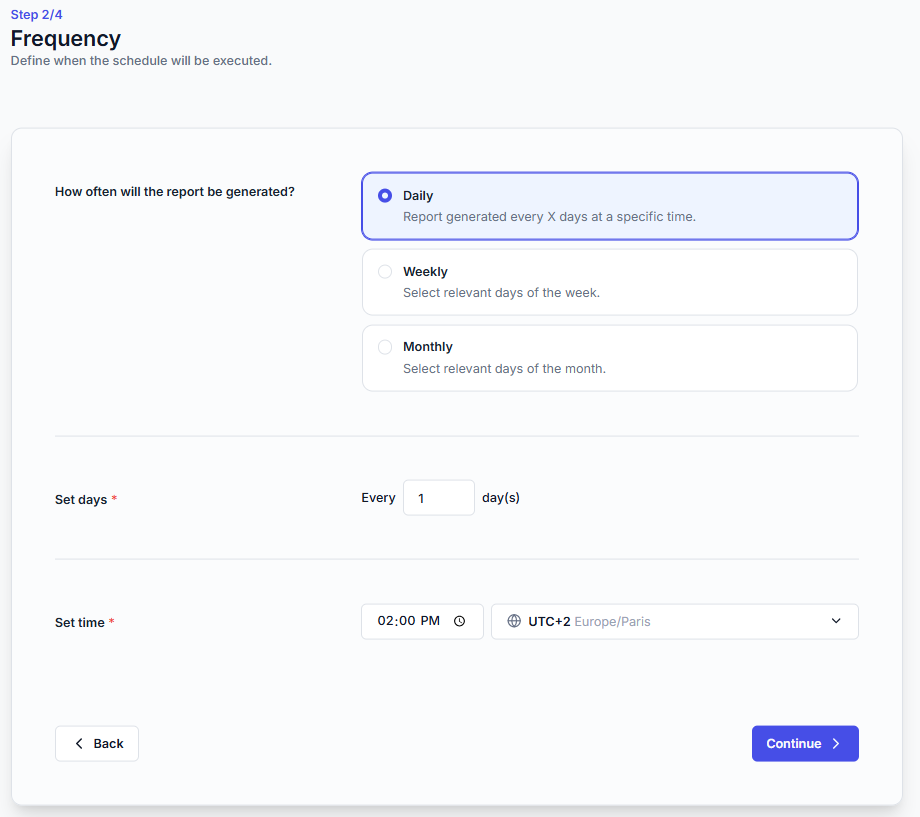
Frequency: daily, weekly, or monthly, with time and time zone settings.
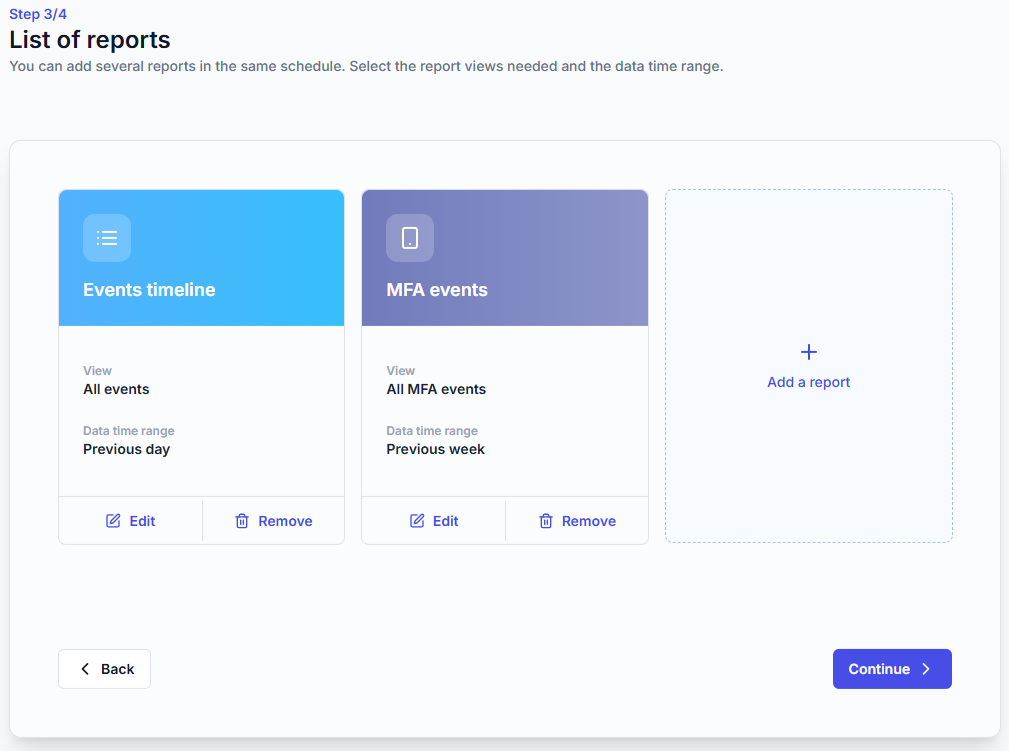
Reports included: one or more reports, each with a time range and selected view.
Actions:
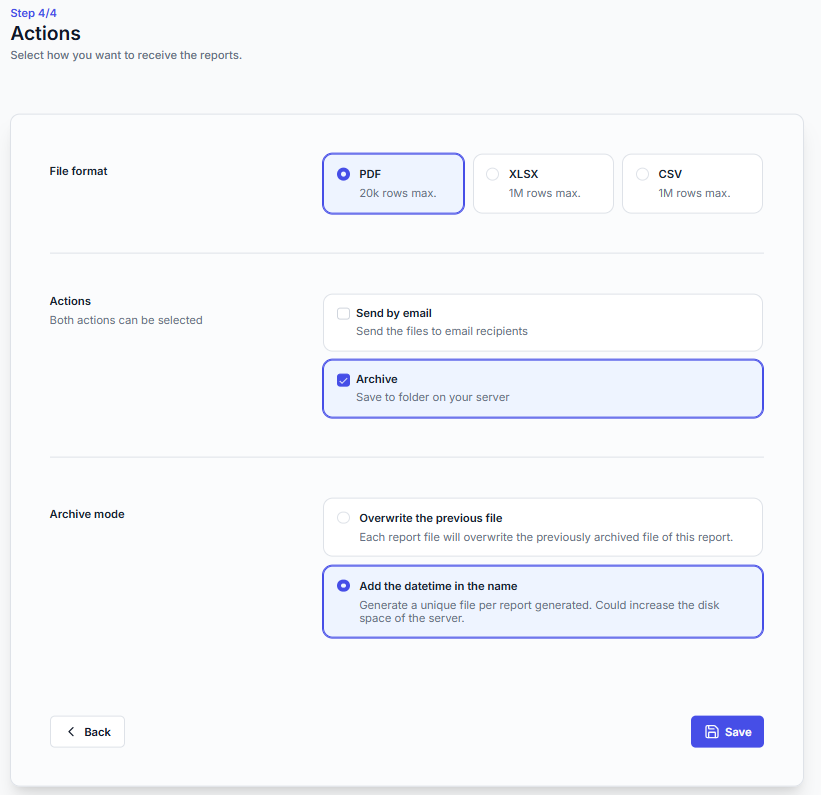
File format: PDF (20,000 rows max.), XLSX or CSV (1 million rows max.).
Send by email: define recipients, subject, and body options. Ensure your email settings are correctly configured.
Archive: save the files to a folder on the server. The Archive mode defines whether each file uses Overwrite the previous file or Add the datetime in the name. The second option keeps one file per run but uses more disk space on the server.
Both actions can be selected for the same schedule.
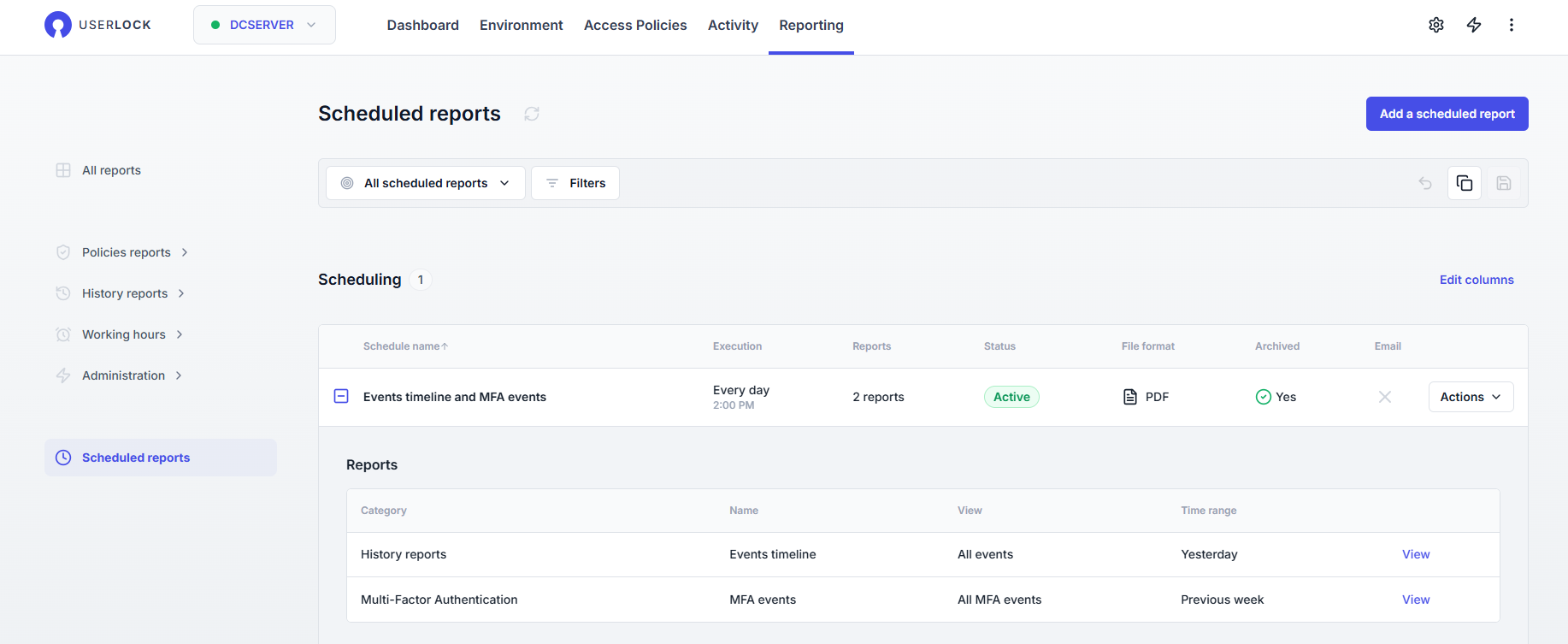
All schedules are listed on the Scheduled reports page, where they can be edited, deactivated, or deleted. From the list, a View link opens the exact report with its filters and settings.
Each console has its own scheduler: schedules created in the Windows Console are not visible in the Web Console, and the reverse.
Typical use cases
Automate compliance reporting by sending weekly denied logons to auditors.
Provide managers with monthly working hours reports by email.
Archive all administrator actions daily to maintain an audit trail.
Each schedule stores the display language of the console used to save it. When the schedule runs, the report files (PDF, XLSX, CSV) and the notification email are generated in that language.
To generate reports in a specific language, switch the console to that language before you save the schedule. The stored language is not displayed in the scheduling wizard or in its summary.
⚠️ Important
If another administrator saves the schedule from a console set to a different language, the reports switch to that language without warning. When in doubt, save it again in the language you want.