MFA settings
Choose the MFA methods available to users, configure FIDO2 security keys and MFA for IIS websites, and set enrollment and recovery options.
Note
To access this page, go to Server settings ▸ MFA.
You need at least read permission on Server settings to view this page, and full permission to change it.
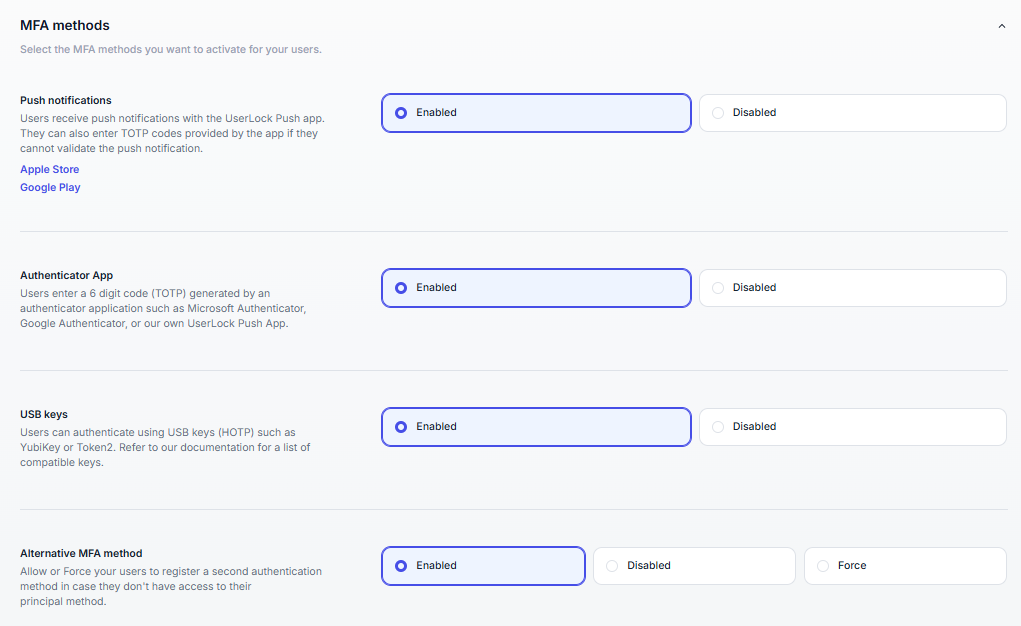
Select the MFA methods available to users. Each method is shown as a card with a switch and the number of users enrolled with it. You can enable several methods at the same time, but at least one method must stay enabled.
Method | Description |
|---|---|
Push notifications | Users approve or deny sign-in requests in the UserLock Push application (iOS and Android). The card shows QR codes to download the app from the Apple Store and Google Play. Available only with a subscription license: with a permanent license, the switch is locked. |
Authenticator app (TOTP) | Compatible with any TOTP-based app (e.g., Google Authenticator, Microsoft Authenticator, Authy). Users enroll by scanning a QR code and then use a time-based code for each login. |
USB keys (HOTP) | Users enter a one-time code generated by a USB key:
|
FIDO2 security keys | Users sign in with a security key compatible with the FIDO2 standard, such as YubiKey, SoloKeys or Feitian. Enabling this method opens the Configure FIDO2 dialog. See Configure FIDO2 security keys. |
The enrolled users count links to the matching view in Environment ▸ Users ▸ Audited by UserLock. These views list the users with MFA, without MFA, and enrolled with each method.
⚠️ Important
Disabling a method doesn’t remove existing enrollments. Users enrolled before the method was disabled can still use it to sign in. New users can’t enroll with it.
FIDO2 security keys are bound to a Relying Party ID (RP ID), a domain name. You define it in the Configure FIDO2 dialog when you enable the method. The dialog depends on whether an MFA IIS app public URL is configured in MFA for websites on IIS servers.
Situation | Dialog content |
|---|---|
No public URL configured | FIDO2 Relying Party ID field, pre-filled with a suggested domain. The value must be a domain name with at least one dot, and can’t be an IP address. |
Public URL configured | MFA IIS app public URL field, locked. Select Change to edit it: the URL must use HTTPS and a domain name, not an IP address. Test checks that the URL is reachable. The FIDO2 Relying Party ID must be the URL host or one of its parent domains, down to the registrable domain. |
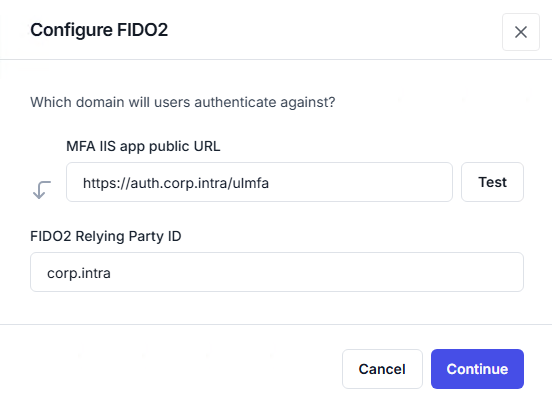
When users are already enrolled with FIDO2, the dialog shows the saved RP ID as read-only.
Select Continue, then save the page. For deployment guidance, see Configure FIDO2 security keys for MFA.
Once FIDO2 is enabled, the card shows the RP ID with an edit icon. The icon is available only to users with full permission on Server settings.
You can change the RP ID only when no user is enrolled with FIDO2. If users are enrolled, the edit icon opens the Unenroll FIDO2 users to change the RP ID dialog instead of the configuration dialog: reset the MFA configuration of these users first. They must enroll their keys again. Contact IS Decisions support before you change the RP ID.
⚠️ Important
While at least one user is enrolled with FIDO2, the RP ID is locked, even when FIDO2 is disabled. When you enable FIDO2 again, the Configure FIDO2 dialog shows the saved RP ID as read-only. If the MFA IIS app public URL is no longer within the RP ID domain, Continue stays disabled.
UserLock Server version: FIDO2 requires UserLock Server 13.1 or later. On an earlier version, the switch is locked.
Backup server: FIDO2 can’t be enabled from a backup server. The RP ID is synchronized from the primary server.
SSO: when SSO is configured, FIDO2 requires the UserLock IIS MFA application. Otherwise, the console shows Install MFA IIS to enable FIDO2.
MFA IIS agent: if an IIS MFA agent is registered, the public URL must be a valid absolute HTTPS URL before you can enable FIDO2.
Standalone Terminal Server: no dialog opens. The RP ID is set to the machine name and can’t be edited.
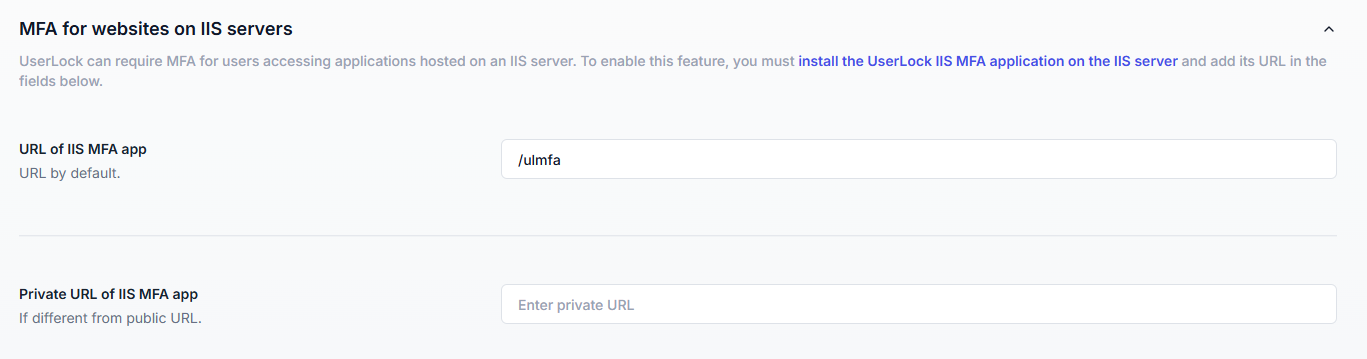
UserLock can require MFA for web applications hosted on Microsoft IIS. It adds a second authentication step after Windows authentication, without modifying the application. To use it:
Install and configure the IIS agent on the web server.
Install the UserLock IIS MFA application, which displays the MFA prompts. See IIS Applications.
Apply an access policy that requires MFA to the targeted users.
This section isn’t available on a Standalone Terminal Server.
Setting | Description |
|---|---|
Public URL | URL of the UserLock IIS MFA application, as users reach it. The Installation guide link opens the IIS MFA installation guide. |
Private URL | Internal URL of the IIS MFA application, if different from the public URL. Available only once a public URL is set. |
Test | Checks that the public and private URLs are reachable. |
FIDO2 security keys are bound to the RP ID domain, so the public URL must stay within this domain. When FIDO2 is enabled, the URL is split into segments:
https:// [Subdomain] .<RP ID>: [Port] / [Application path]
You can edit only the subdomain, the port and the application path. The other parts are locked.
If no public URL is configured, select Add a public URL. The console then fills in a default URL built on the RP ID:
https://<RP ID>/ulmfa.Remove resets the URL to unconfigured. This doesn’t change the RP ID. When SSO is configured, Remove is unavailable, because SSO requires the IIS MFA application.
The Private URL field is hidden. Enabling FIDO2 deletes any private URL already configured.
⚠️ Important
The public URL stays locked to the RP ID domain as long as at least one user is enrolled with FIDO2, even when FIDO2 is disabled.
Useful resources
Control how users enroll in MFA and how they recover access when their primary method is unavailable.
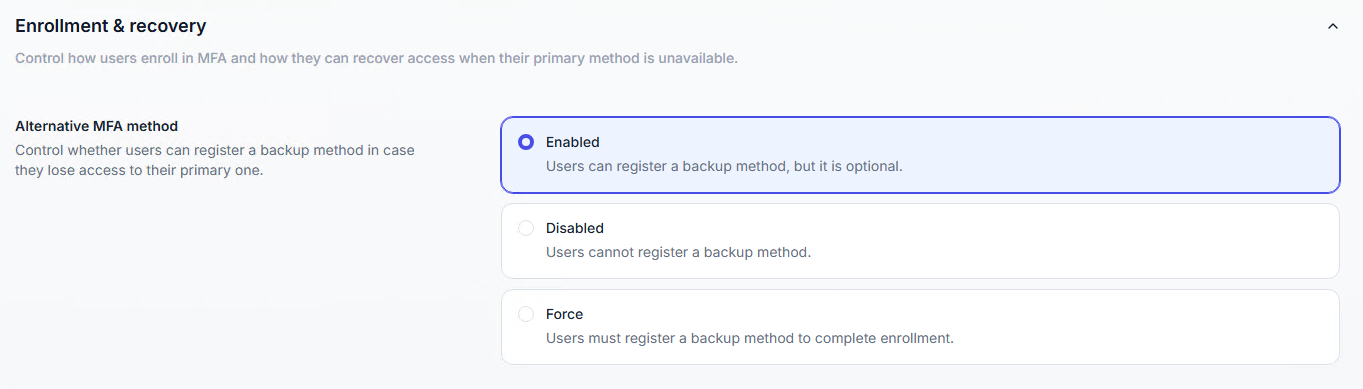
Lets users register a backup MFA method during enrollment, for when they lose access to their primary method.
Option | Description |
|---|---|
Enabled | Users can register a backup method. This is optional. |
Disabled | Users can’t register a backup method. |
Force | Users must register a backup method to complete enrollment. |
Enabled and Force are available only when one of these conditions is met:
At least two methods among Push notifications, Authenticator app (TOTP) and USB keys (HOTP) are enabled.
FIDO2 security keys is enabled. A second security key can serve as the backup.
You can enable FIDO2 security keys and Push notifications on the server at the same time, but a user can’t have both, as primary or backup method. The same applies to FIDO2 security keys and USB keys (HOTP). A user enrolled with a security key registers a second security key or an authenticator app (TOTP) as backup. With a second key, they have two FIDO2 keys: a primary key and a backup key.
⚠️ Important
In Force mode, every user must be able to register a compatible backup method. If FIDO2 security keys is enabled with only Push notifications or only USB keys (HOTP), users who enroll with Push or HOTP have no possible backup. Enable an additional method, such as Authenticator app (TOTP), or turn off Force. Until then, the console won’t save the settings.
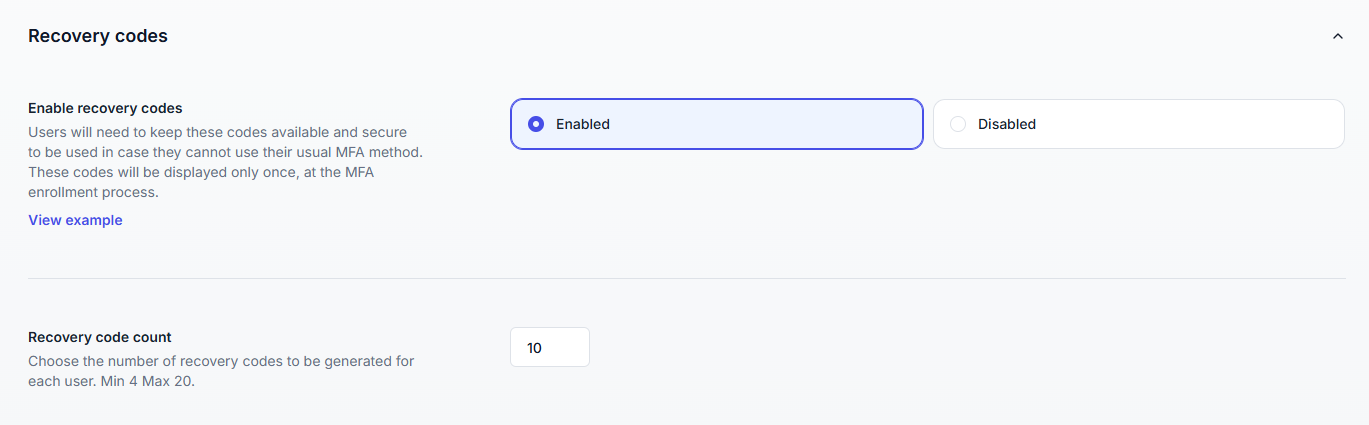
Single-use codes that replace the second factor when the user’s MFA method is unavailable.
Codes per user: from 4 to 20.
UserLock generates the codes automatically during enrollment and shows them only once. Users must store them securely.
Each code works only once.
Select View example to see the codes as users see them.
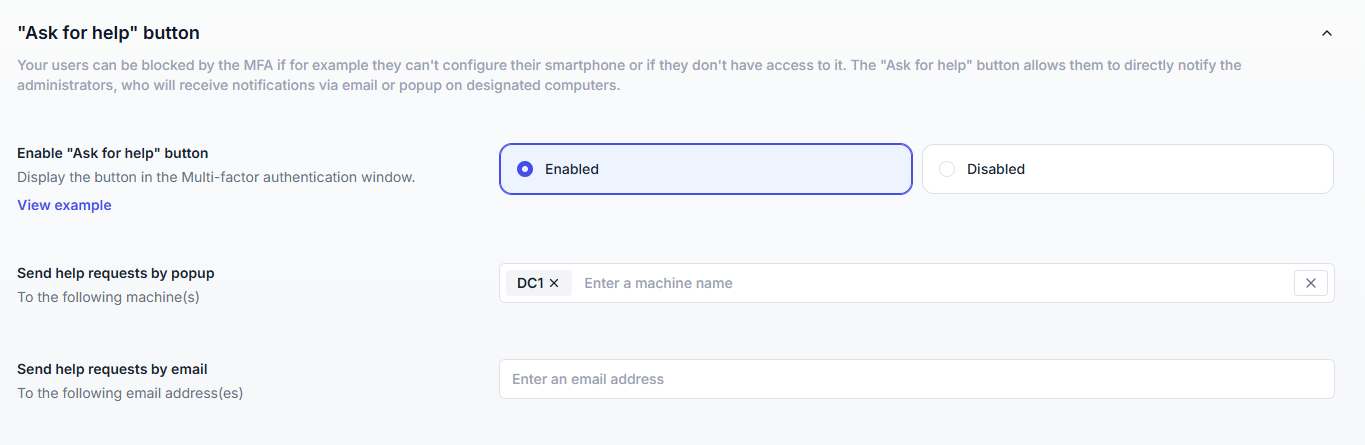
Adds an Ask for help button to MFA prompts and to the enrollment screens. Users select it when they can’t complete MFA, for example after losing their device.
Setting | Description |
|---|---|
Notify by popup on machines | Names of the machines that display a popup notification for each request. |
Notify by email | Email addresses that receive a notification for each request. |
Enter at least one recipient, by popup or by email.
Email notifications require configured Email settings. If they aren’t configured, the console shows a warning.
Requests appear on the MFA help requests page, in Activity. From there, administrators can:
temporarily disable MFA for the user;
reset the user’s MFA configuration;
mark the request as resolved.
You can customize the MFA messages and notifications displayed to users and UserLock operators, such as the MFA configuration prompt, the MFA error message or the “Ask for help” notification. Select Customize to open Messages.