Migrate the UserLock database
Move UserLock data to SQLite, SQL Server or MySQL from the console, with no events lost while the data is copied.
You change the production database and migrate its data from the console, in Server settings ▸ Database. The database wizard copies the data to any supported provider: SQLite, SQL Server or MySQL. UserLock keeps recording sessions and events during the copy, so no event is lost. It switches to the new database only when the migration has finished.
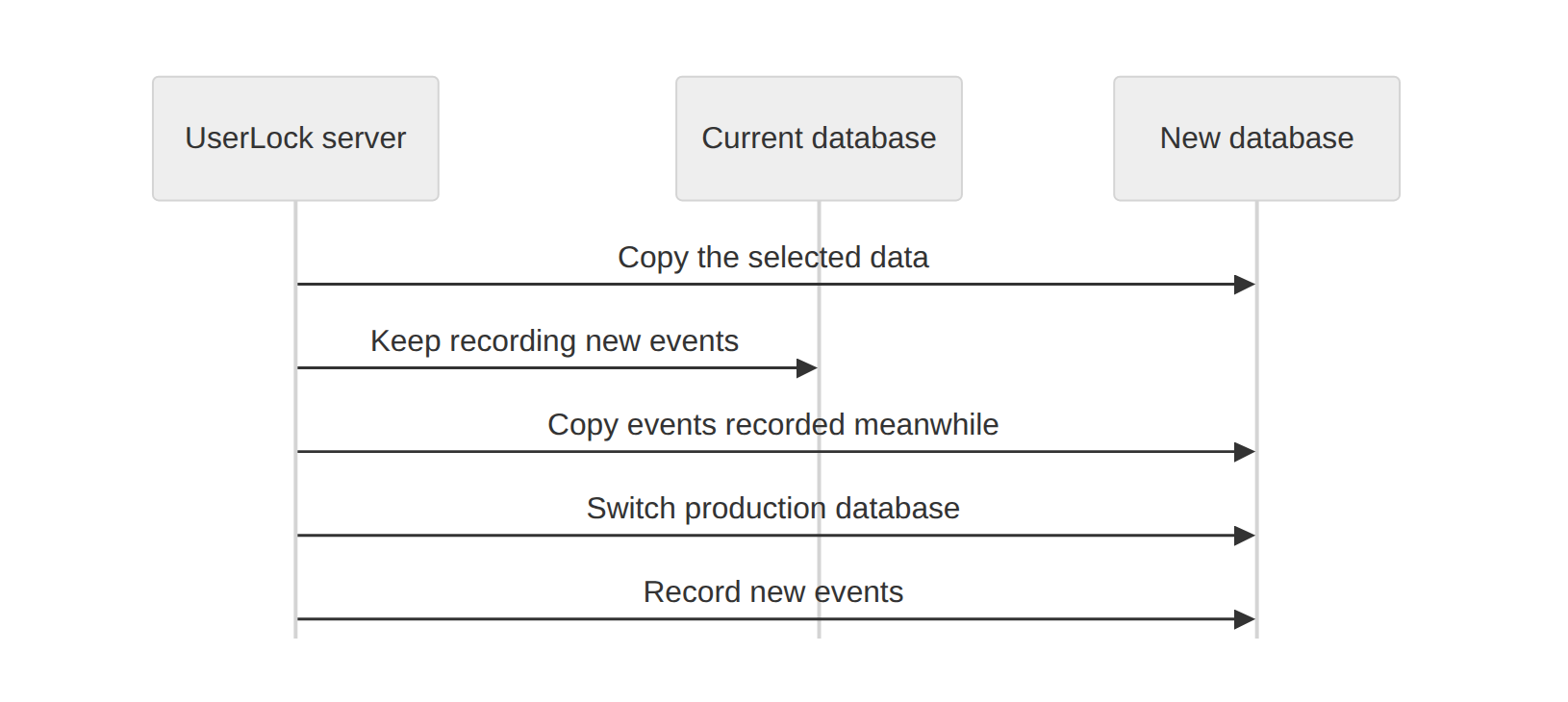
Examples of migrations:
Microsoft Access to SQLite
Microsoft Access to SQL Server
MySQL to SQL Server
SQL Server to another SQL Server instance
⚠️ Important
In UserLock 13.1, SQLite replaces Microsoft Access as the default database. An existing Access production database keeps working, but you can no longer select Access for a new production database. After a migration, you can still open the old Access database in reports as an archived database.
The same wizard also configures read-only access and the backup database. These flows have no Migration step and are described in Server settings ▸ Database.
Note
For requirements and the database schema, see Database architecture.
To start with an empty database, select Don't migrate data in the wizard, or see Define a production database.
If the production database still uses Microsoft Access, the Database page shows the Recommended: migrate your database to SQLite message. SQLite is file-based, like Access, but has no 2 GB size limit.
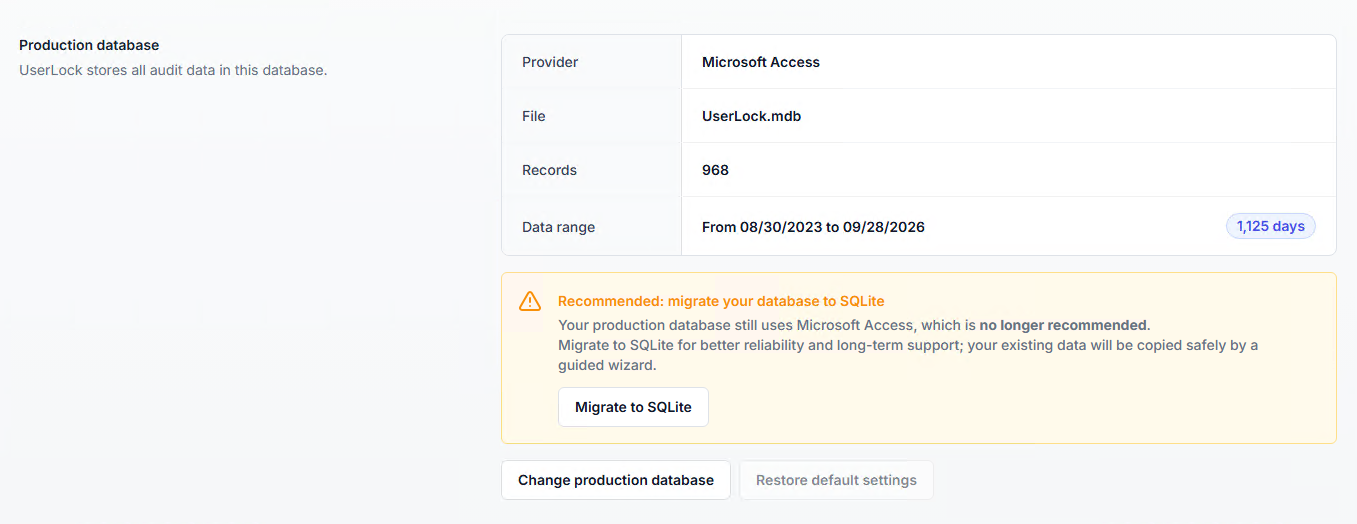
In Server settings ▸ Database, under Production database, click Migrate to SQLite. The wizard opens on the Migration step, with SQLite and the default database file already set.
Select a migration option, then click Continue. See Choose what to migrate.
Review the summary, then click Confirm and apply.
The summary shows a New database badge: UserLock creates the SQLite file at C:\ProgramData\ISDecisions\UserLock\Database\UserLock.db.
💡 Tip
The wizard describes SQLite as suited to trials and small deployments. For a large environment, migrate to SQL Server instead: follow Migrate to another database.
In the UserLock console, click the ⚙️ wheel (top right), then select Database in the left menu.
Under Production database, click Change production database. The database wizard opens.
On the Select the database provider step, select SQLite, SQL Server, MySQL or Connection string, then click Continue.
Enter the connection details, then click Continue. See Connection details by provider. UserLock tests the connection before moving to the next step.
On the Data migration step, select an option, then click Continue. See Choose what to migrate.
On the Confirm database changes step, review the summary, then click Confirm and apply.
The wizard preselects the current provider and pre-fills its connection details. To move to another SQL Server instance, change only the Server field.
No change is applied before you click Confirm and apply. Closing the wizard or reloading the page before that step discards the settings you entered.
Provider | Fields |
|---|---|
SQLite | Path of the database file. Click Browse to select a location. |
SQL Server | Server (hostname or IP), Authentication, Security, Database |
MySQL | Hostname, Port (3306 by default), Username, Password, Database |
Connection string | Driver type in the list, then the full connection string. It must include the database name and authentication parameters. |
You do not need to create the target database beforehand. If it does not exist, UserLock creates it:
SQLite: enter the path of a file that does not exist yet.
SQL Server and MySQL: type a new name in the Database field. The field also lists the existing databases. To create a database, the account used for the connection needs the right to create databases on the server.
⚠️ Important
If you migrate data (Migrate all data or Migrate from the last X days) to an existing database, the migration erases the UserLock tables of that database as soon as it starts. Cancelling the migration does not restore them. To keep the existing data of the target, select a new database. With Don't migrate data, the data already stored in the selected database is kept.
For SQL Server, Trust self-signed server certificates lets UserLock connect to a server that uses a self-signed certificate.
For a description of each field, see Server settings ▸ Database.
The Data migration step offers three options.
Option | What is copied | When to use it |
|---|---|---|
Don't migrate data | Nothing. The new database starts empty. | You do not need the existing history in the new database. |
Migrate all data | Every record in the current database | You need the full history for reports and audits. |
Migrate from the last X days | Records from the last X days only | The history is too large for the target, or older data is no longer needed. |
The migration time depends on the volume of data and on the network between the UserLock server and the database servers. Migrating only the last X days shortens it.
Records that are not copied stay in the old database. You can keep it as an archive and open it in reports as an archived database. See Reporting.
After you click Confirm and apply, the wizard closes. The Database page is then locked on Migrating data to the new database.... It shows the current and the new database, and the number of records migrated so far.
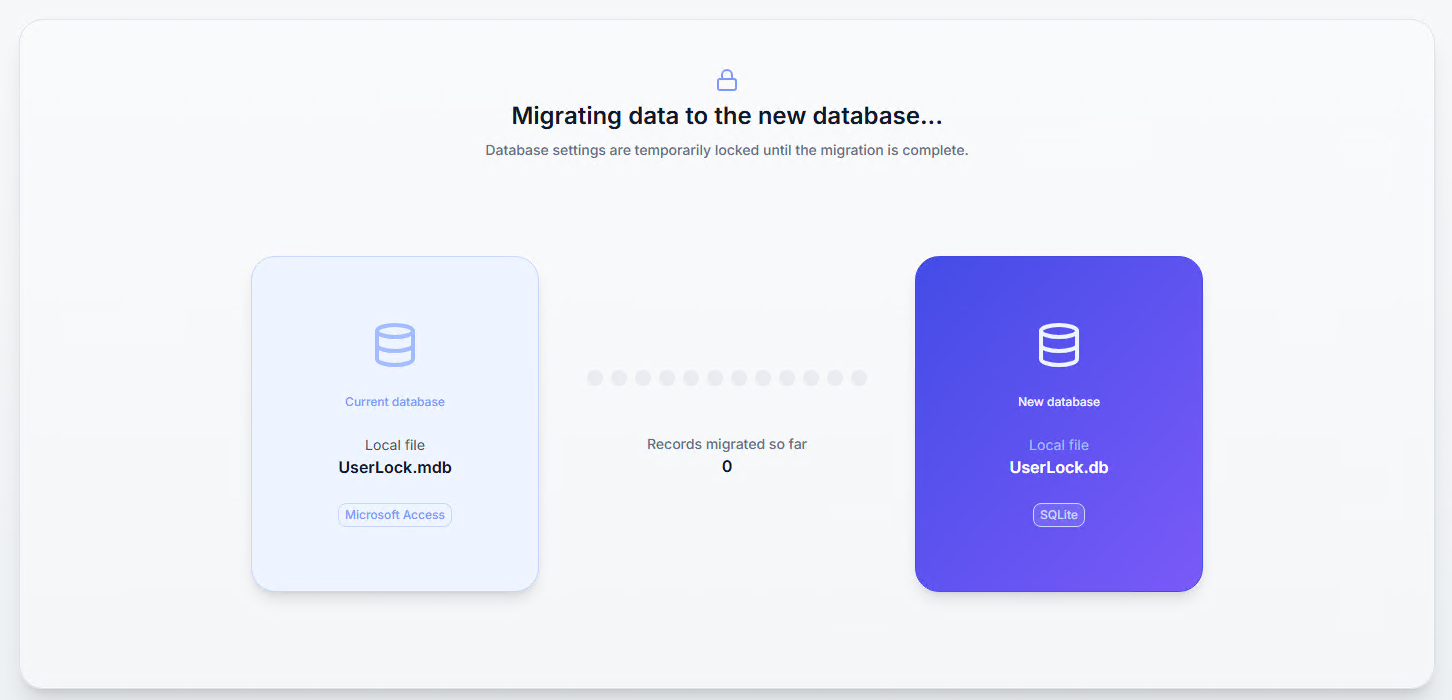
The lock applies to every administrator connected to the UserLock server, not only to the one who started the migration. No one can change the database settings or start another migration until the current one ends. The page unlocks automatically when the migration completes.
To stop the migration, click Cancel migration, below the migration card. Scroll down if you do not see it.
The production database stays on the old database.
Cancelling can take some time: UserLock finishes the current copy step before it stops. The page shows the cancellation in progress until then.
The new database is not deleted. It keeps the records copied before the cancellation, so it is incomplete. Delete it manually, or select it again as the target of a new migration.
If the migration fails, the card shows the error message. The production database stays on the old database, and the incomplete new database remains in place. Click Discard changes to close the error screen and return to the Database page. From there, you can start the migration again.
In Server settings ▸ Database, under Production database, check the Provider, the number of Records and the Data range.
Open a report and check that it shows recent sessions.
Configure permissions and backups on the new database.
UserLock does not modify or delete the old database. Keep it until you have checked the new one, then archive it.
Symptom | Fix |
|---|---|
"The database connection could not be established." after Continue | Click Check the details to see the error returned by the database server. |
The error mentions a certificate (SQL Server) | Select Trust self-signed server certificates on the Database step. |
The error mentions access rights | Give the account, or the Service impersonation account with Windows Authentication, the right to create databases for a new database, or to read, write and create tables for an existing one. |
The target is too small for the data | Select Migrate from the last X days, or use a target without a size limit. |
The Database page shows Migrating data to the new database... | A migration is in progress. Wait until it completes, or click Cancel migration. |