Access policy management
This section brings together all operations for managing access policies in UserLock: creating, editing, cloning, and deleting. It also describes the available views to review configured policies and to understand which restrictions are effectively applied to users.
Useful resources
Access policies apply to machines in the protected zone with the UserLock agent installed.
Policies can be created at the user, group, or organizational unit (OU) level.
In the Access Policies pages, clicking a target name opens the list of configured policies for that target. From there, a new policy can be created using the Add button and the policy wizard.
Note
A user can be affected by multiple policies (permanent and/or temporary). The rules applied are determined by the policy priority system.
Editing can be performed in multiple locations:
Access Policies pages → inline actions → Edit.
Summary page → edit icon of the selected policy.
User/Group/OU dashboard → Access Policies → Configured tab → click the policy.
Directly after creating a policy in the wizard, by selecting an existing policy to edit.
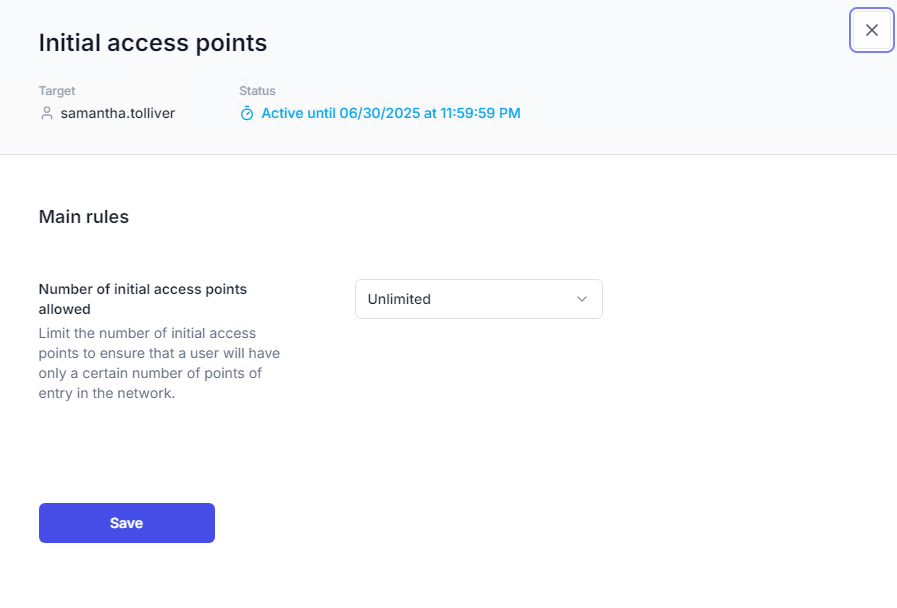
Editing a policy opens the target dashboard (Configured tab) and displays a dialog with the related rules. Modifications are applied after clicking Save.
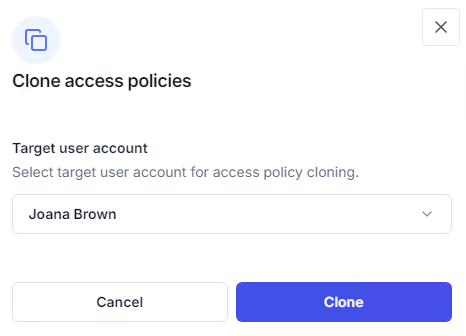
Cloning copies all access policies configured for a user, group, or organizational unit to another target. The target can be of any type: for example, policies configured for a user can be cloned to a group or an OU.
Cloning is available from:
Inline actions in the Access Policies pages.
The Configured tab of a user, group, or OU dashboard.
⚠️ Important
Cloning always copies every policy configured for the source, not only the policy type shown on the current page. For example, cloning from the MFA page also copies the source's session limits, working hours, and any other configured policies.
The cloned policies keep the duration type of the source:
Permanent policies are cloned as permanent policies. Cloning fails if the target already has permanent policies configured. To clone anyway, select another target or delete the policies configured for this one.
Temporary policies are cloned as temporary policies with the same start and end dates. Cloning fails if the target already has a temporary policy whose period overlaps these dates, including one with exactly the same dates. To clone anyway, change the dates of one of the two policies or delete the target's temporary policy.
If cloning fails, the reason appears in the dialog.
To clone policies:
Click Clone. The Clone access policies dialog opens.
In Target entity, search for the target and select it in the results. The search covers users, groups, and organizational units, including those in other domains.
Click Clone.
The target's dashboard then opens on Access Policies, where the cloned policies can be reviewed and adjusted.
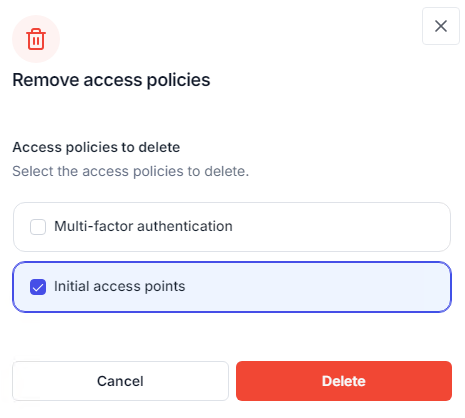
Deletion methods depend on the context:
From a specific policy type page (e.g., MFA, session limits, geolocation): the Delete inline action prompts a confirmation before removal.
From a user, group, or OU dashboard (Access Policies → Configured tab): the Delete action opens a dialog listing all configured policies for that target and duration. Multiple policies can be selected for deletion.
The Summary page lists all configured policies by user, across all policy types (MFA, geolocation, initial access point, etc.).
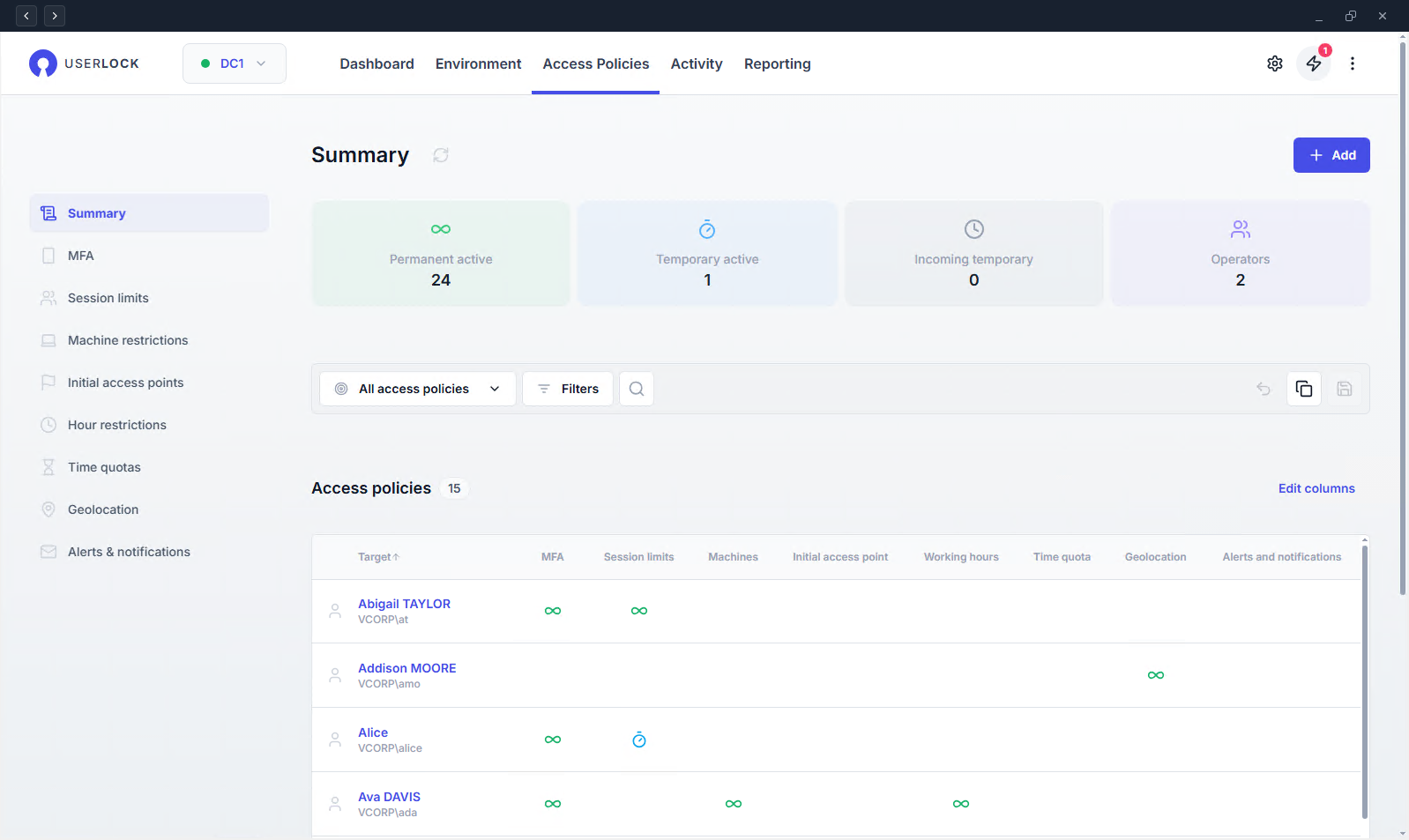
Dedicated pages exist for each policy type, with prefiltered views.
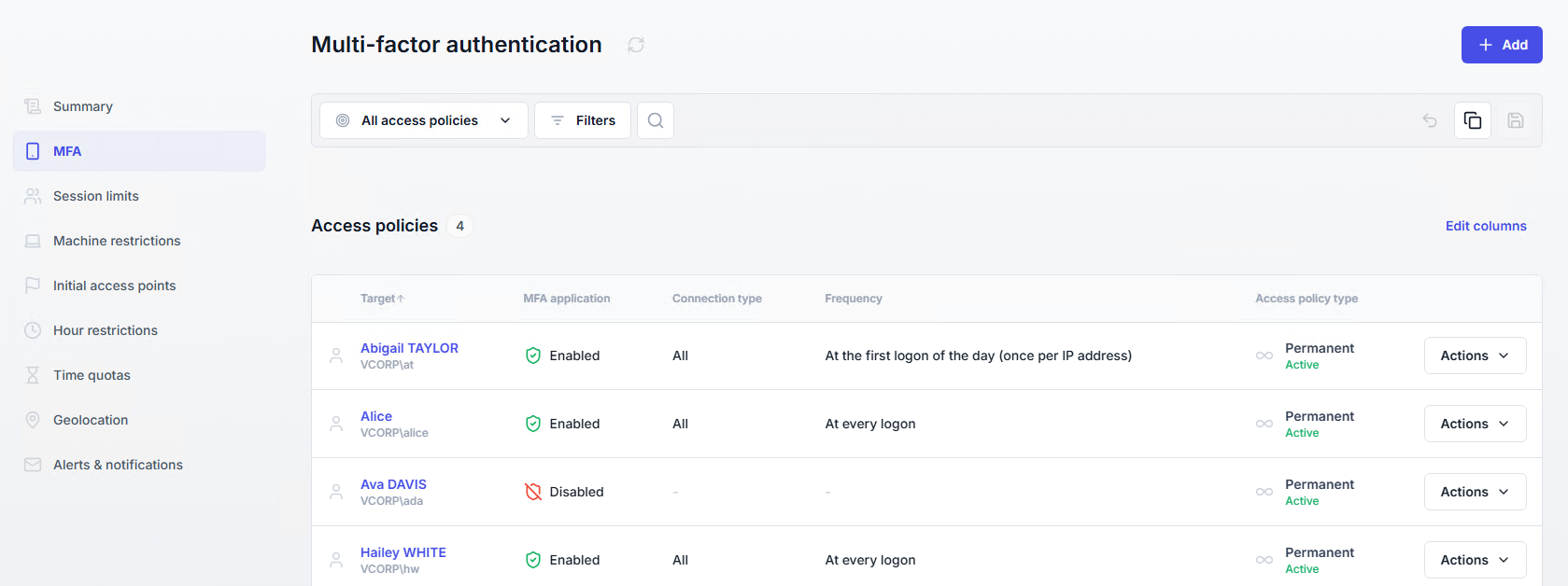
Temporary policies: clock icon.
Active → blue
Expired or future → gray
Permanent policies: infinity icon.
Active → green
Inactive → gray
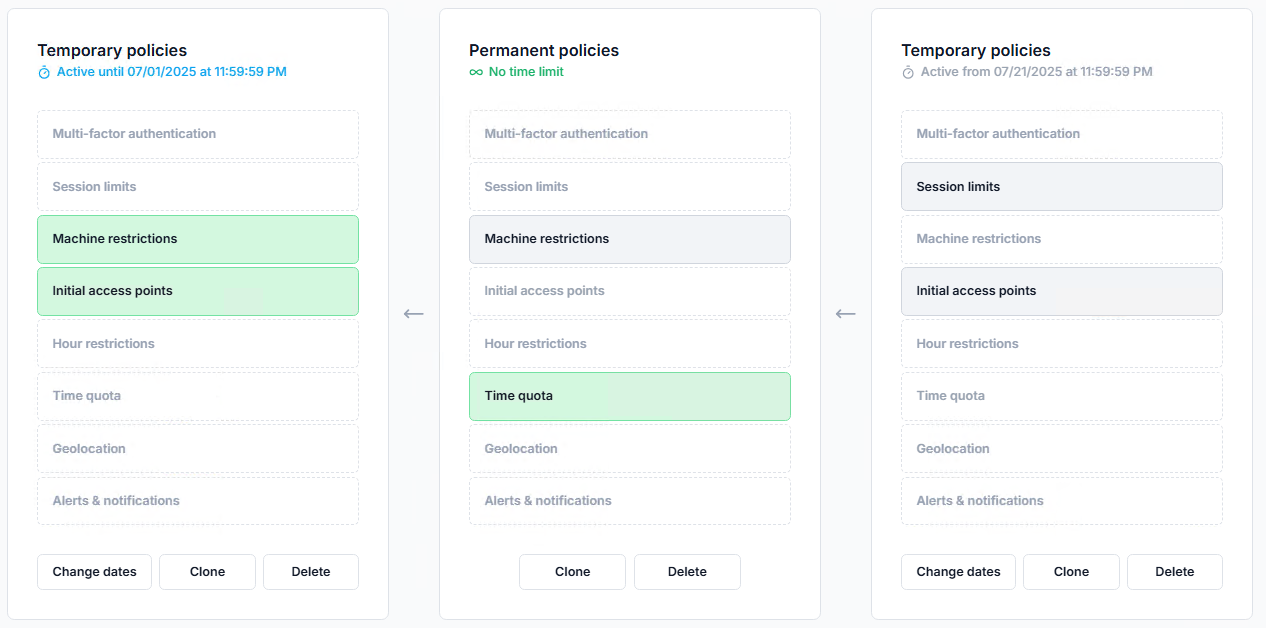
In the Configured tab of a user, group, or OU dashboard, policies are listed in their application order. For example:
Active temporary policies
Permanent policies
Future temporary policies
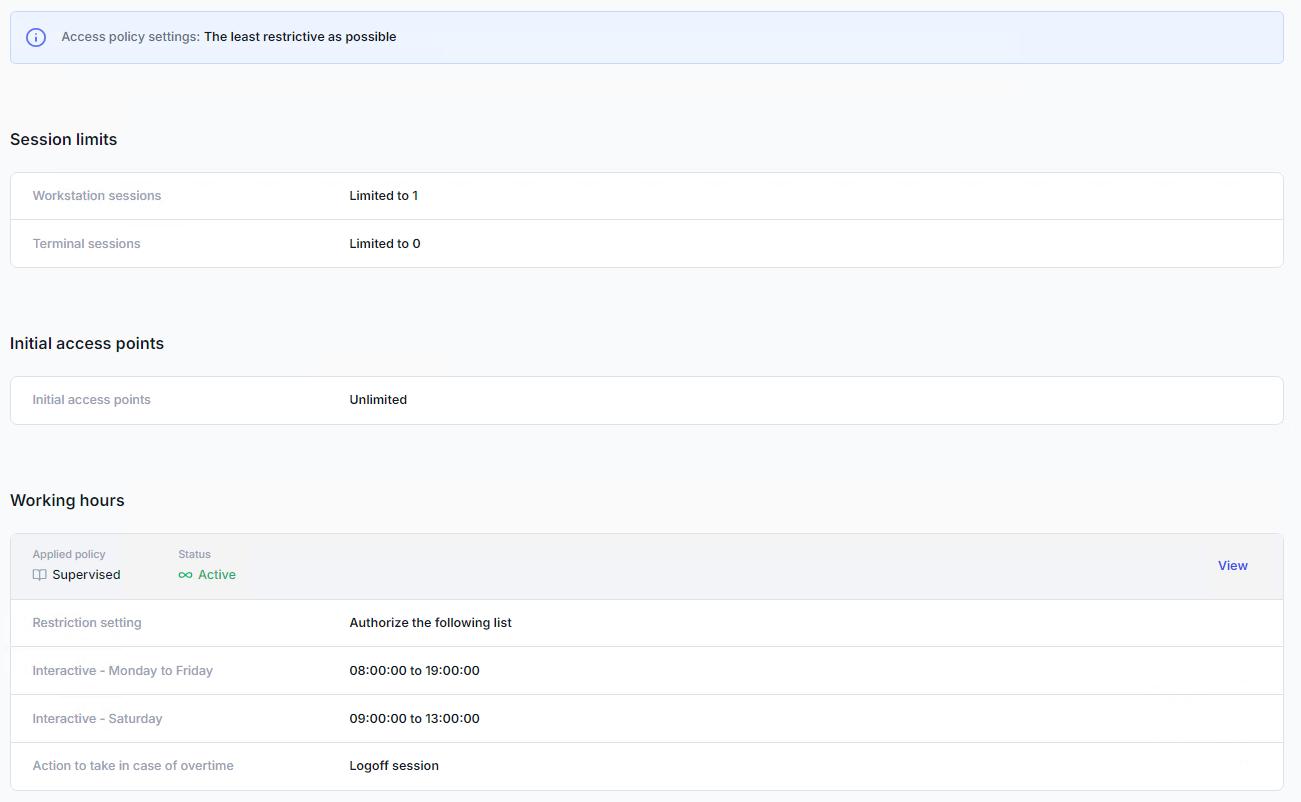
The Effective tab (user dashboards only) displays the access policies that are currently applied to a specific user.
This view consolidates rules from user, group, and organizational unit (OU) policies, based on the policy priority management.
Access the effective policies by opening the user's dashboard, going to the Access Policies tab, and selecting the Effective tab.
UserLock access policies can be defined for a given period. For more information, see the temporary policy page.