Upgrade procedure
Upgrade UserLock to a new minor or major version: download the installer from the console, run it on each server and keep your configuration.
Before upgrading UserLock, check your version type and prepare your environment.
✅️ Identify your upgrade type
Minor upgrade: When the 3rd or 4th number increases (for example, 12.0.0.633 → 12.0.0.800).
Major upgrade: When the 1st or 2nd number increases (for example, 12.x → 13.0).
✅️ Always upgrade the Primary server first, then the Backup server.
✅️ Back up your configuration: see Backup settings & data for instructions.
✅️ Prevent a reboot: you can usually upgrade without restarting the server. See Avoiding a server reboot for more details.
✅️ Download the latest version: from the website or from the UserLock console.
✅️ Plan to update the additional modules (IIS MFA, UserLock Anywhere and Web Console): after upgrading UserLock, run the new installer on each server that hosts one of them.
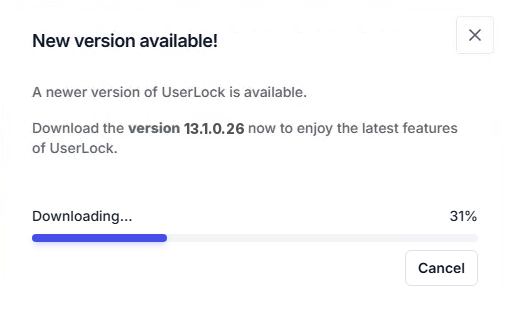
The Web Console and the Desktop Console show an Update available alert when a new version is available. The installer is downloaded to the machine that runs the console: with the Web Console, this is the machine where your browser runs, usually not the UserLock server.
Note
You may also be notified of a beta version: betas follow a different process, described in Beta Testing Procedure.
Open the download dialog from the Update available alert, or at any time from the About dialog.
Click Download.
Find
UserLock-Setup.exein the browser’s download folder (Web Console), or in the Downloads folder, which opens automatically (Desktop Console).Copy the installer to the Primary server if it is not already there, and to the Backup server if you have one (see Server types).
A minor upgrade updates UserLock components without changing the database structure.
It is fast and typically requires no reboot.
Run the new installer
On each server, run the installer you got in Download the latest version from the console. You don't need to uninstall the previous version. All components are upgraded automatically.Restart IIS application pools (if applicable)
After installation, restart the stopped application pools. (See Avoiding a server reboot).Update agents (if applicable)
Update Desktop Agents manually or via Automatic Mode.
Update IIS and NPS agents as needed
Re-enable IIS MFA protection for the web console if used.
Verify primary–backup synchronization and confirm normal activity.
Verify that all sessions and MFA features function normally.
A major upgrade introduces new features and may modify the database structure.
It requires a valid, active license.
Verify your license: in Server Properties → License, confirm that:
The license key matches the version supplied by IS Decisions Sales.
The subscription period is still active (the license has not expired).
If needed, contact IS Decisions Support to renew or obtain a valid license key.
Prepare database permissions: if UserLock connects to an external database (such as SQL Server or MySQL), make sure the account used for authentication can temporarily modify the database structure during the upgrade.
Windows authentication:
The UserLock service impersonation account must have modify rights to create or alter tables.SQL authentication:
The database account defined in the connection string must have the same permissions.Note
These rights are required only during the upgrade.
If you previously restricted table creation permissions, restore them before proceeding.
Run the new installer on the Primary server: see Download the latest version from the console. Do not uninstall the previous version.
After the installation completes, the Configuration Wizard opens automatically.
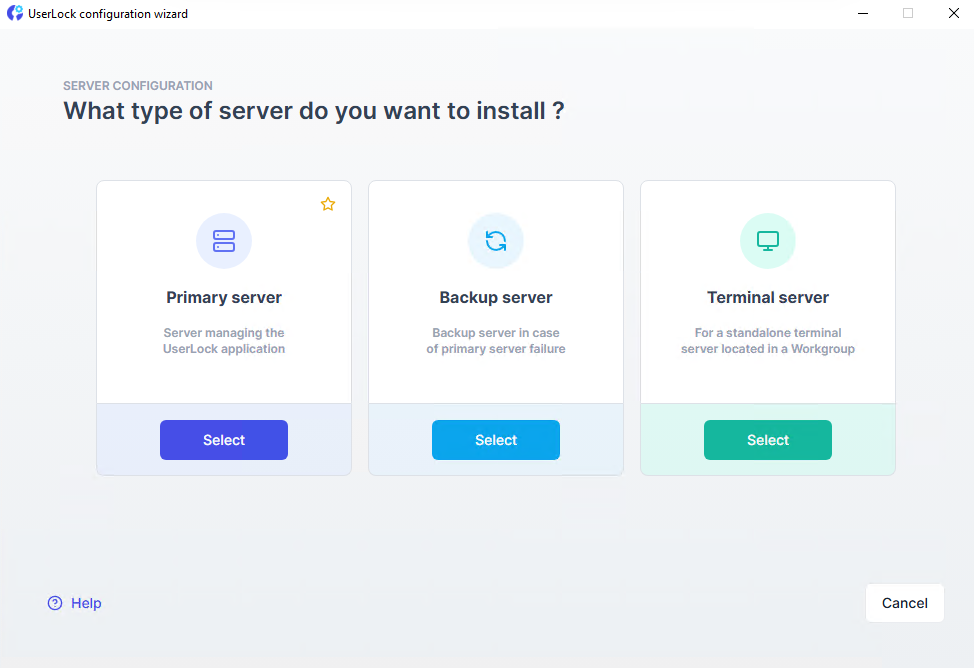
Click Continue and choose Primary Server.
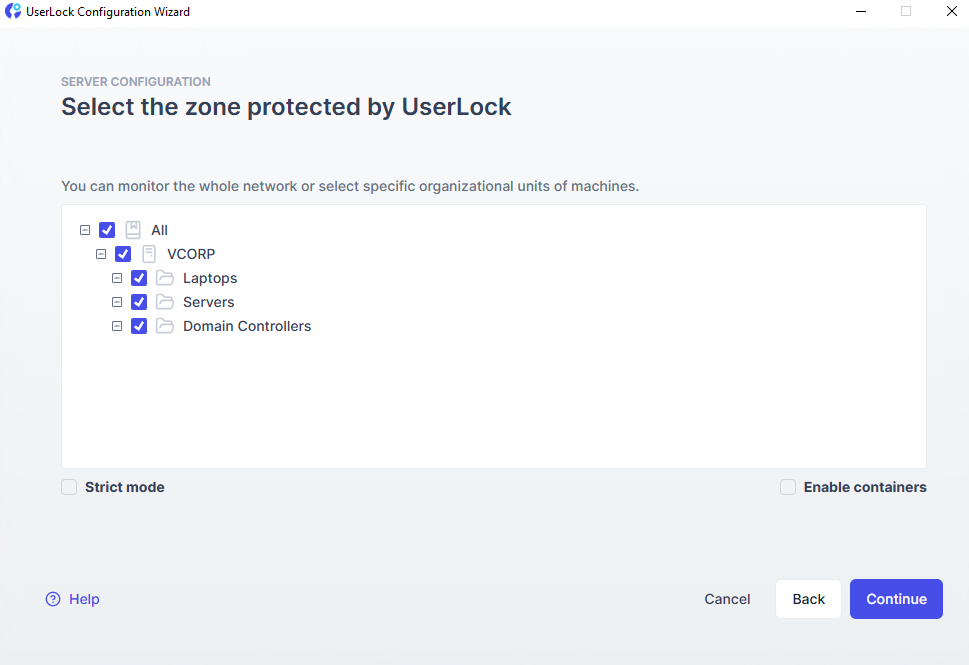
Select the computer OUs to include in the Protected Zone.
Enter the service impersonation account credentials with admin rights on:
This server and the backup server
All computers protected by UserLock
Note
This account also upgrades the database if using Windows authentication.
The process makes no changes to Active Directory.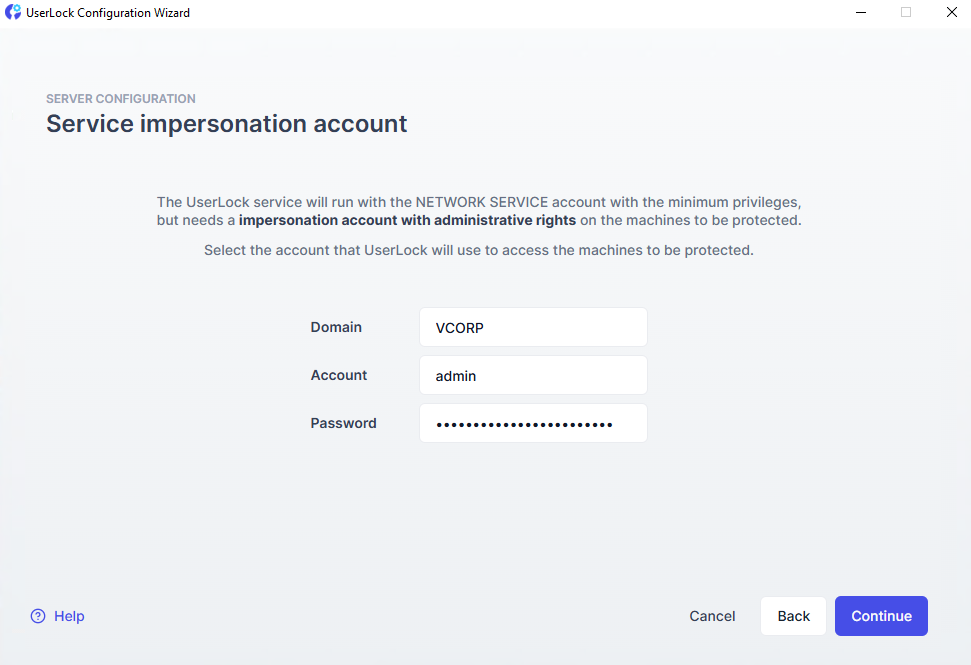
Continue through the Wizard to finalize the setup.
Configure optional modules such as MFA for IIS, UserLock Anywhere, or the web console.
Verify that all previous server settings and existing access policies are correctly migrated.
On the Backup server, repeat the process and select Backup Server as the role, then reference the upgraded Primary server.
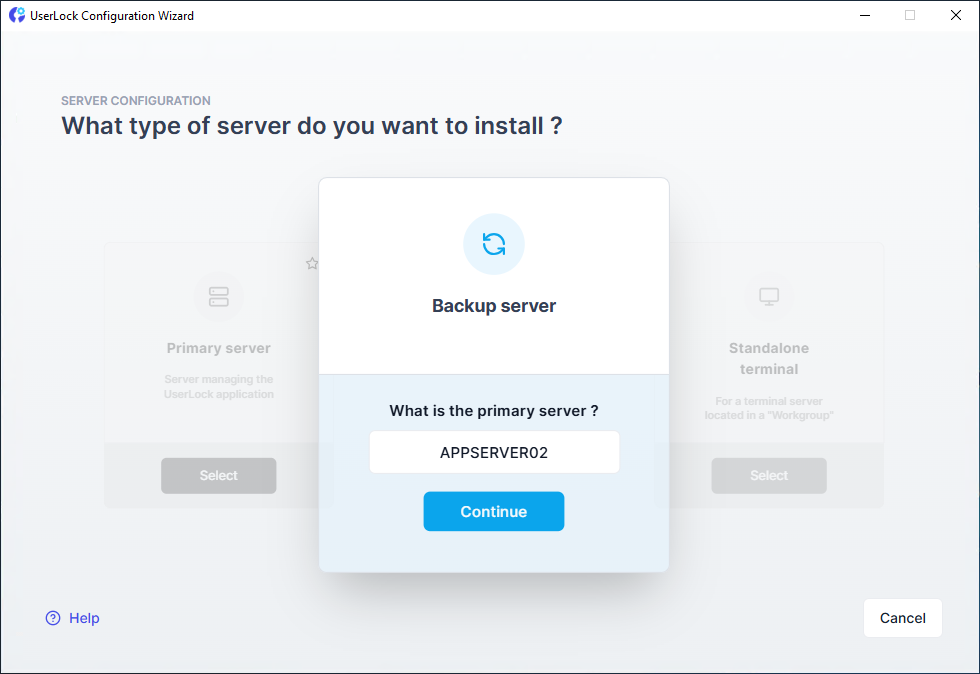
Restart all previously stopped application pools.
Re-enable IIS MFA protection for the web console if used.
Update all agents (Desktop, IIS, NPS) to the new version.
Verify primary–backup synchronization and confirm normal activity.
Your UserLock environment is now upgraded and ready to use the latest features.
⚠️ Important: Scheduled reports are not migrated from UserLock 12.x
UserLock 13.0 introduced a new report scheduling system. When you upgrade from UserLock 12.2 or earlier to UserLock 13.0 or later, your existing scheduled reports are not migrated and do not appear in the new console. After the upgrade, recreate them manually: see Scheduling reports.
To upgrade without restarting the server:
Close all MMC consoles.
Close the UserLock Administration Console.
Stop these IIS application pools (if installed):
UserLockAppPool– Web ConsoleUserLockMfaAppPool– IIS MFAUserLockProxyAppPool– UserLock Anywhere
Do not restart these applications until the upgrade is complete.
Note
These are default names; yours may differ.
In IIS Manager: go to Application Pools → select → Stop.