Enroll users with a FIDO2 security key
Set up a FIDO2 security key, such as a YubiKey or Token2 key, as your MFA method and use it to sign in over USB or NFC.
A FIDO2 security key is a small physical device, such as a YubiKey or a Token2 key. After you enter your Windows password, you use the key to confirm your identity: plug it into a USB port and touch it, or tap it on an NFC reader. Depending on your organization's settings, you may also need to enter the key's PIN.
You can use your security key to sign in to:
your Windows computer, locally or through Remote Desktop
UAC elevation prompts
RemoteApp and RD Gateway connections
web and cloud applications your organization protects with UserLock
Your key also works when your computer is offline.
You can enroll a backup method in case you lose or forget your key: a second security key, an authenticator app or recovery codes. You cannot use a security key together with the UserLock Push app or an HOTP token.
A security key provided or approved by your IT team.
Your domain credentials.
If you already use another MFA method, such as the UserLock Push app, ask your administrator to reset your MFA configuration first.
To sign in through Remote Desktop, connect with
mstsc.exeor the Windows App.Plan a fallback method: See Add a backup security key.
Insert the security key into a USB port on the computer, or have it ready to tap on the NFC reader.
Connect with your Windows credentials.
Select Security Key. Do not select USB Token, which is for HOTP tokens.
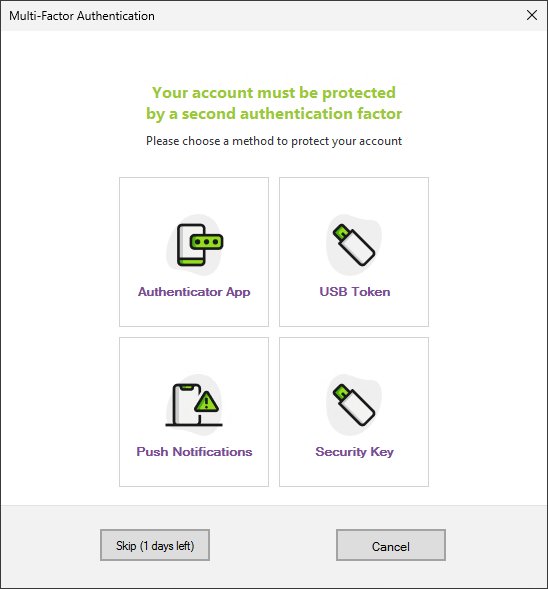
When using an NFC reader, tap your key on the reader when asked: 'Insert or tap your security key...'.
If the key does not have a PIN yet, a prompt is shown to create one. If it already has a PIN, enter it. The PIN is required for offline connections.
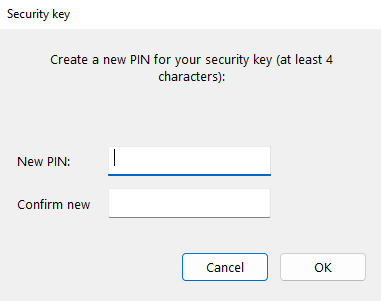
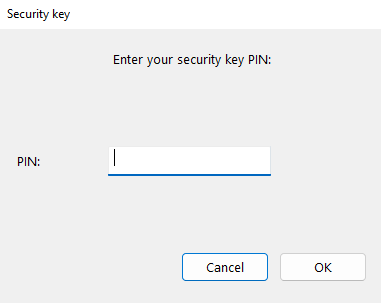
When prompted, touch the USB key to confirm. With NFC there is no separate touch: keep the key on the reader until enrollment completes, and tap it again only if you are asked to.
UserLock confirms the enrollment. The security key is now your MFA method.
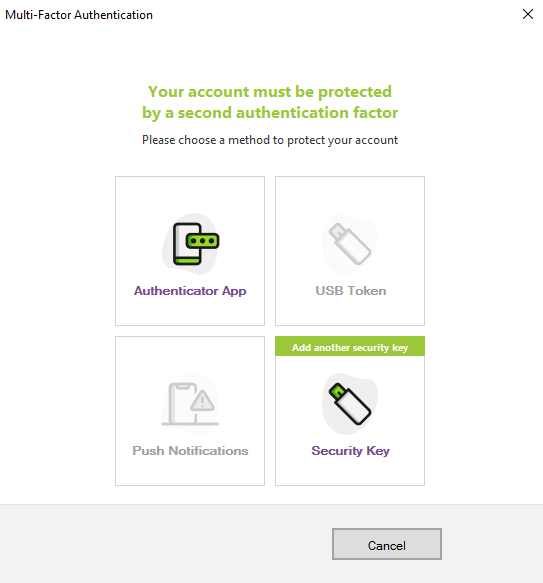
More than one security key can be registered, typically a primary key plus a backup, so a lost or damaged key does not lock a user out. During enrollment, after the first key is registered, the Security Key card stays available with an Add another security key badge.
Insert or tap the second key and select the card again.
Set or enter the second key's PIN, then touch the USB key to confirm, or keep the NFC key on the reader until enrollment completes.
Note
A backup key uses the account's fallback slot. This means you can enroll two security keys, or one security key plus one other method (such as an authenticator app), but not two keys and a separate fallback method.
Once enrolled, MFA with security key triggers automatically during sign-in.
Enter your Windows credentials.
The security key prompt starts automatically. Make sure the key is inserted or on the NFC reader. For RDP sessions, select Security key, then a window pops up from the host to select the security key to use.
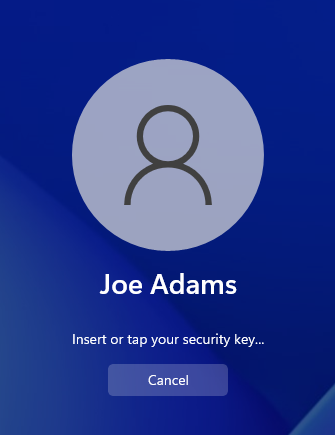
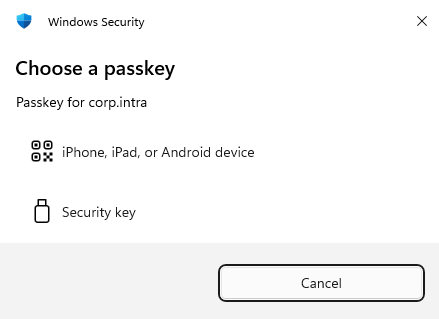
Enter the key's PIN if asked, then touch the USB key to confirm. With NFC, keep the key on the reader until the prompt completes.
If several security keys are connected, touch the one you want to use.
If your NFC key was already lying on the reader, you are asked to lift it and tap it again (Tap your security key again on the reader). Each sign-in needs a fresh tap.
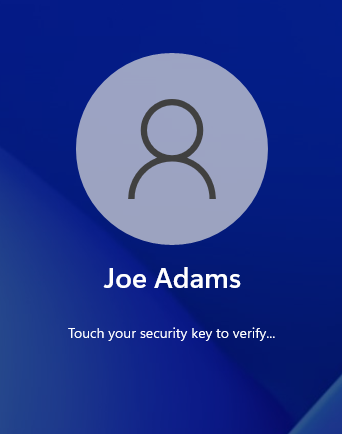
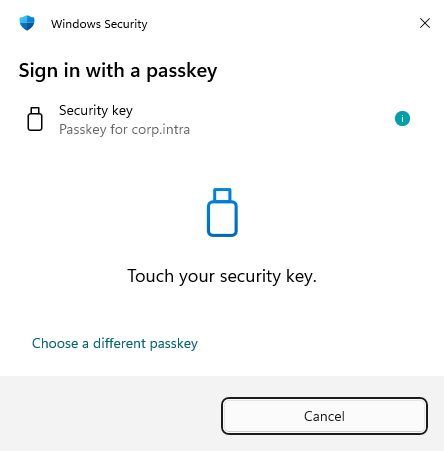
You are signed in.
If you need another way to verify your identity, select Cancel during the prompt to open the Choose how to verify your identity menu, where you can pick Security key, Enter code (if you enrolled an authenticator app or recovery codes), or Ask for help (if your administrator enabled it).
If your computer cannot reach your organization's network, you can still sign in with your security key:
Offline sign-in works only on a computer where you have already signed in online with this key.
You are always asked for the key's PIN.
If you use several computers, sign in once on each of them while connected to your organization's network.
Lost or stolen security key. If you lose a key, contact your administrator right away. After your administrator resets your MFA configuration, enroll all your keys again, including your backup key.
You are asked to change your key's PIN. Some keys are issued with a temporary PIN that must be changed on first use. Enter the current PIN, then choose and confirm a new one.
Your new PIN is rejected. Some keys enforce their own PIN-complexity rules (for example, no sequences like 123456, no repeated digits, or a minimum length). Choose a different PIN that meets the manufacturer's rules.
"This security key is already enrolled for your account." The key you used is already registered on your account. Use a different key to add a backup.
The PIN is blocked. Too many wrong PIN attempts can temporarily or permanently block the key. A temporary block clears after you unplug and re-insert the key, or lift it off the reader and tap again. A permanent block requires resetting the key to factory settings, which erases its credentials. Contact your administrator to reset your MFA configuration, then enroll the key again.
The prompt does not appear over RDP / RemoteApp. Make sure you connect with Remote Desktop Connection (mstsc.exe) or the Windows App. If the prompt still does not appear, contact your administrator.