Email settings
Configure and test the SMTP server that sends UserLock notifications for policy, session, user status, and service events.
Note
To access this page, go to Server settings ▸ Email settings.
You need at least read permission on Server settings to view this page.
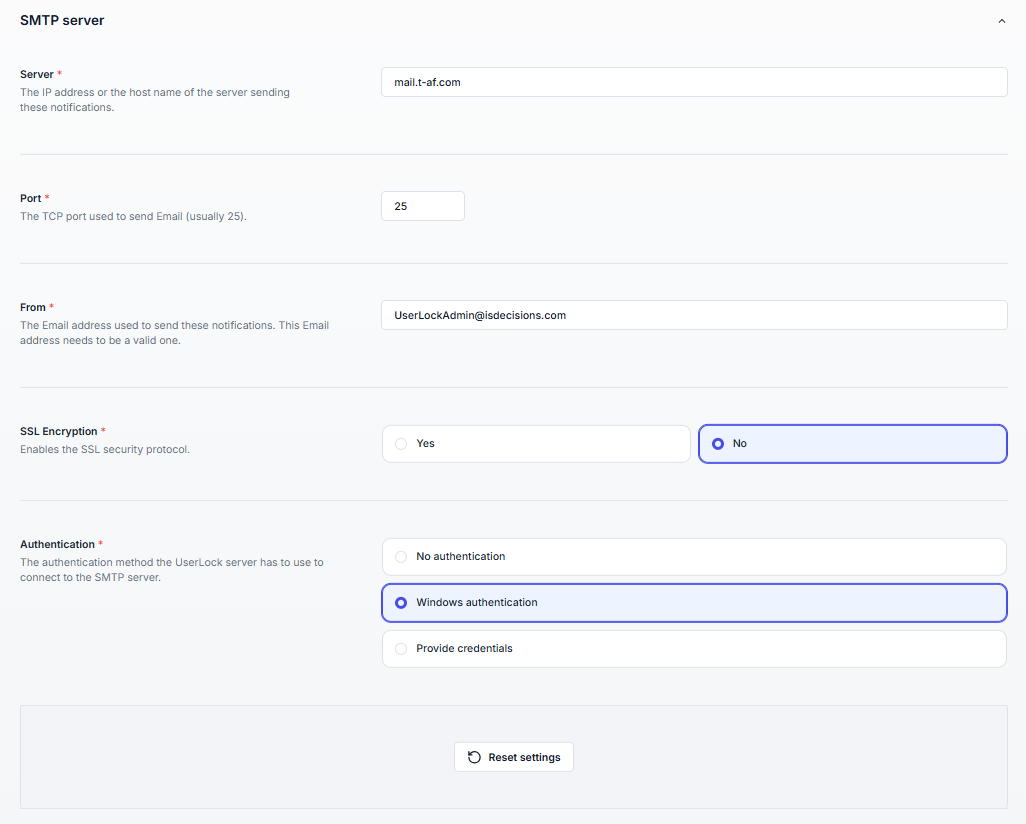
To send email notifications, UserLock uses the SMTP protocol, which must be configured here by providing the following information:
Setting | Description |
|---|---|
Server | The IP address or hostname of the server that will send these notifications. |
Port | The TCP port used to send email (usually 25). |
From | The email address used to send these notifications. Must be valid. |
SSL encryption | Enables the SSL security protocol. |
Authentication | The authentication method the UserLock server will use to connect to the SMTP server.
|
User name / Password | The credentials of the account used to connect to the SMTP server. Required when selecting the Provide credentials option. |
OAuth 2.0 credentials | Credentials of the application registered with the OAuth 2.0 provider. Required when selecting the Modern authentication (OAuth 2.0) option. For the full procedure, see Configure SMTP settings. |
Notes
The Modern authentication (OAuth 2.0) option can only be configured from the UserLock console on the server. In the Web console, the option is visible but disabled.
The Reset settings button allows you to restore the default values for this configuration.

You can test your SMTP settings at any time by entering an email recipient and clicking the Send test email button.
The result of the test will be displayed in a toast notification in the bottom-right corner.
Use a dedicated sender account (e.g., userlock-noreply@yourdomain.com) instead of a personal mailbox.
Always test configuration with Send test email before relying on it.
If using authentication, prefer service accounts with non-expiring passwords.
Make sure outbound SMTP is allowed by your firewall.