Database
Configure where UserLock stores audit data: production, read-only and backup databases, connection details, GMT time and automatic cleaning.
Since UserLock 13.1, the default database is SQLite. You configure the production, read-only and backup database connections with the database wizard. Only Restore default settings changes the production database without the wizard.
UserLock writes events with a new .NET insertion engine (ADO.NET): no event is lost when the database is temporarily unavailable. See Event insertion engine and database outages.
Note
To access this page, go to Server settings ▸ Database.
You need at least read permission on Server settings to view this page, and write permission to change its settings. Without write permission, the page is read-only.
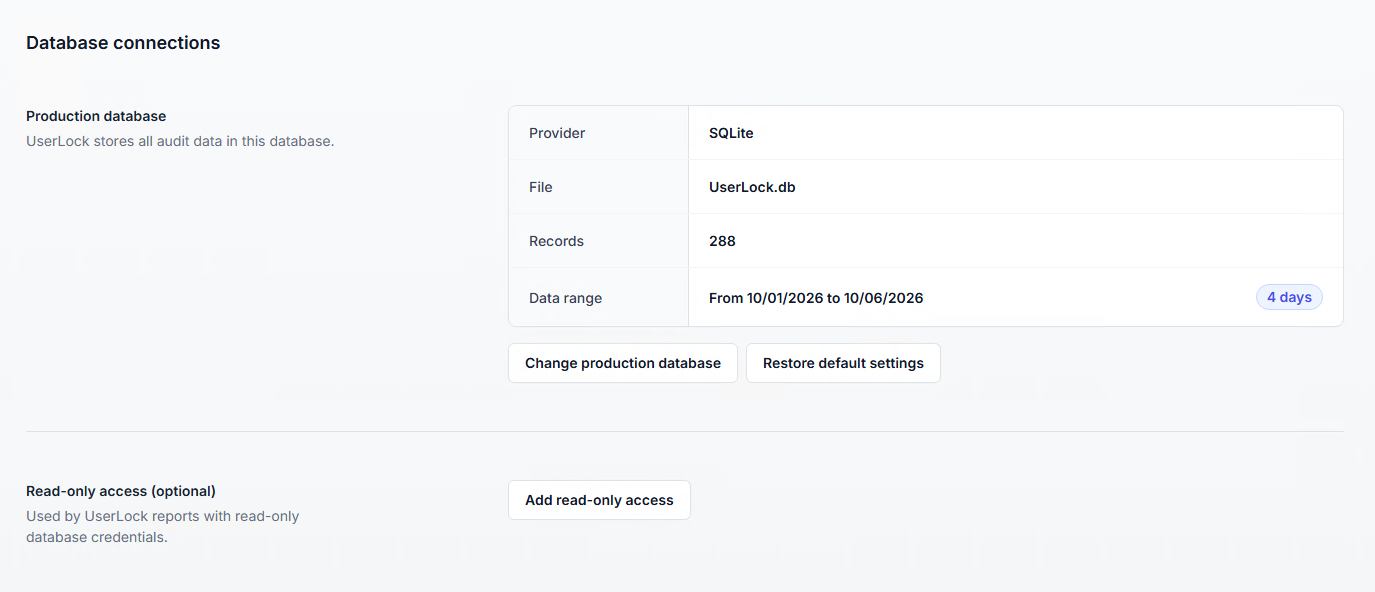
The blocks displayed depend on the server type:
Primary server: Production database and Read-only access (optional).
Backup server: Backup database, and Read-only access (optional) once the backup database is enabled.
UserLock stores all audit data in this database. This block displays its connection and content. They cannot be edited here: use the wizard.
Item | Description |
|---|---|
Provider | SQLite (default), SQL Server, MySQL, Connection string or Microsoft Access (legacy). |
File | SQLite and MS Access only: name of the database file (e.g., |
Server name, Database, Port, Authentication | Other providers: Server name (SQL Server), Database, Port (MySQL) and Authentication (account name, or Windows). |
Records | Total number of records stored in the UserLock tables of the database: logon events, user status and admin actions. If the connection fails, this row shows Unable to connect to the database. Check the details and try again. |
Data range | Dates of the first and last recorded events, with the number of days covered. |
A new installation stores its data in a single local SQLite file (UserLock.db) and starts recording immediately: no database server to install, no driver to deploy, no credentials to manage. The drivers for all supported database types, including MySQL, are installed automatically with UserLock.
The block offers the following actions:
Change production database: opens the database wizard. For an existing Microsoft Access database, it opens the Connection string editor, as Access is no longer offered as a provider.
⚠️ Important
When you migrate data to an existing database, its UserLock tables are deleted before the copy starts, and cancelling does not restore them. To keep them, select a new database or choose Don't migrate data. See Best practices and warnings.
Restore default settings: after confirmation, replaces the production database connection with the default SQLite database (
UserLock.db) provided by the UserLock installation. The default database is used as it is, with any records it already contains. No data is migrated, the current database is not modified, and the read-only access and options are kept. The button is unavailable when the default database is already in use.
Note
For step-by-step instructions, see Define a production database to start on an empty database, or Migrate the UserLock database to keep existing data.
An existing Microsoft Access database (UserLock.mdb) keeps working after the upgrade to 13.1, but migration to SQLite is recommended. The block then shows the Recommended: migrate your database to SQLite message. Click Migrate to SQLite: the wizard opens on the Migration step, with SQLite and the default database file already set. See Migrate from Microsoft Access to SQLite.
While a migration is in progress, the page is locked on Migrating data to the new database... for every administrator connected to the UserLock server. It shows the progress and a Cancel migration button. If the migration fails, the page shows Database migration failed with the error details and a Discard changes button. See Follow or cancel a migration in progress.
For supported versions and size limits of each database type, see Database architecture.
This optional connection lets UserLock reports read the database with an account that has read-only rights, while the production connection keeps the account with write access. Use a database account with read-only rights on the UserLock database.
To define it, click Add read-only access to follow the database wizard. With SQLite, the database file must already exist, otherwise the connection test fails.
Once configured, the block shows Same as production and only the fields that differ from the production connection. Use Edit to change the read-only access, or Remove to delete it.
When the production database uses user credentials (SQL Server Authentication or a MySQL account) and no read-only access is configured, a Security recommendation box suggests configuring one.
⚠️ Important
After you change the production database, update the read-only access so that reports use the new database. When you migrate data, the Confirmation step of the wizard also shows a Reminder.
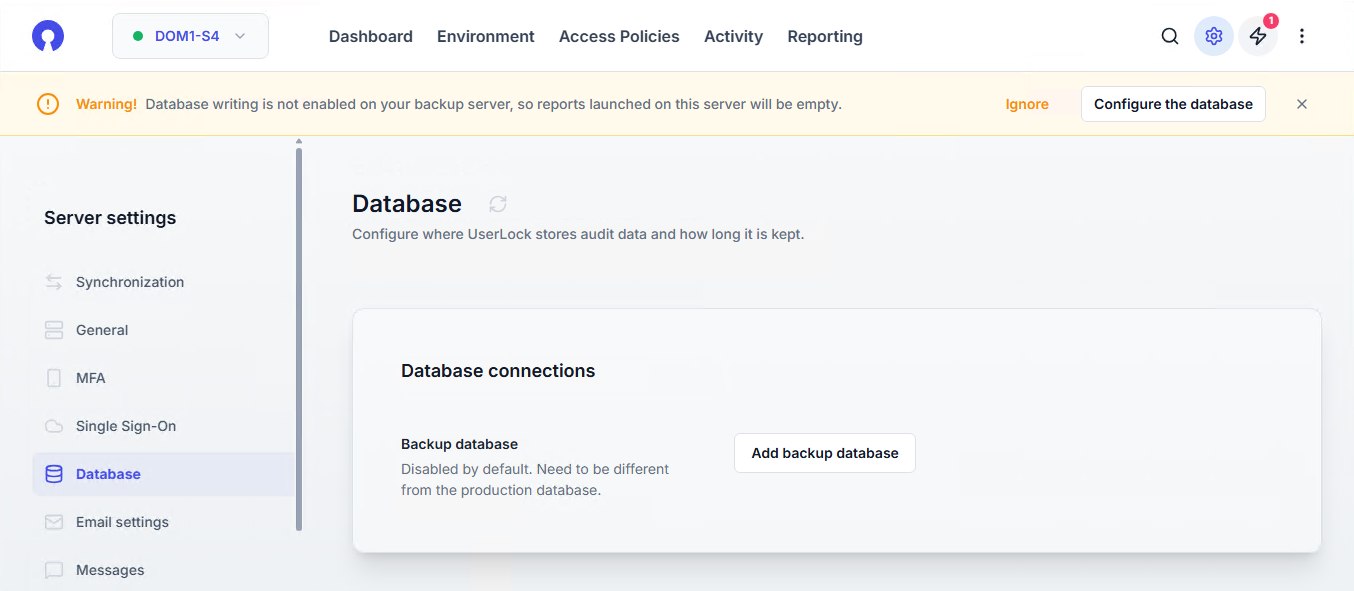
On a backup UserLock server, the Backup database is disabled by default: database writing is not enabled, so reports launched on this server are empty. A warning banner indicates it: click Configure the database to set it up, or Ignore to hide the warning for 30 days.
To enable it, click Add backup database. The database wizard opens; this flow has no Migration step.
The backup database can be on the same database server as the production database, but the databases must be distinct. For SQLite, the same local path on two different servers counts as two distinct databases.
Once enabled, the block shows Edit and Remove, and the Read-only access (optional) block also appears. After a Remove, the warning banner appears again.
For the role of each server, see Server types.
In the database wizard, the Database step asks for the following fields, depending on the provider selected. UserLock tests the connection when you click Continue.
Provider | Field | Description |
|---|---|---|
SQLite | Database file | Path of the database file. Click Browse to select a location. Default: |
SQL Server | Server | Hostname or IP address of the SQL Server, with the instance name and port if needed: |
Authentication | Windows Authentication (uses the service impersonation account), or SQL Server Authentication (username and password required). | |
Security | Connection security options. Trust self-signed server certificates lets UserLock connect to a server that uses a self-signed certificate. | |
Database | Lists the existing databases on the server. You can also type a new name. A New or Existing badge shows whether the database already exists. | |
MySQL | Hostname | Hostname or IP address of the MySQL server. |
Port | 3306 by default. | |
Username, Password | Account used to connect to MySQL. | |
Database | Lists the existing databases on the server. You can also type a new name. A New or Existing badge shows whether the database already exists. | |
Connection string | Provider | ODBC, SQL Server, MySQL or SQLite. |
Connection string | Full connection string, for an advanced setup. It must include the database name and the authentication parameters. |
Note
SQL Server has no separate Port field: add the port after a comma. The server:port syntax is not supported.
If the database or the file does not exist, UserLock creates it after you click Confirm and apply. Exceptions: the file must already exist for read-only access with SQLite, and the database must already exist for an archived database. For the account rights required, see Automatic database creation.
LocalDB editions of SQL Server are not compatible with UserLock.
The Options block groups the following settings. Unlike database connections, they are applied with the save bar: click Save.
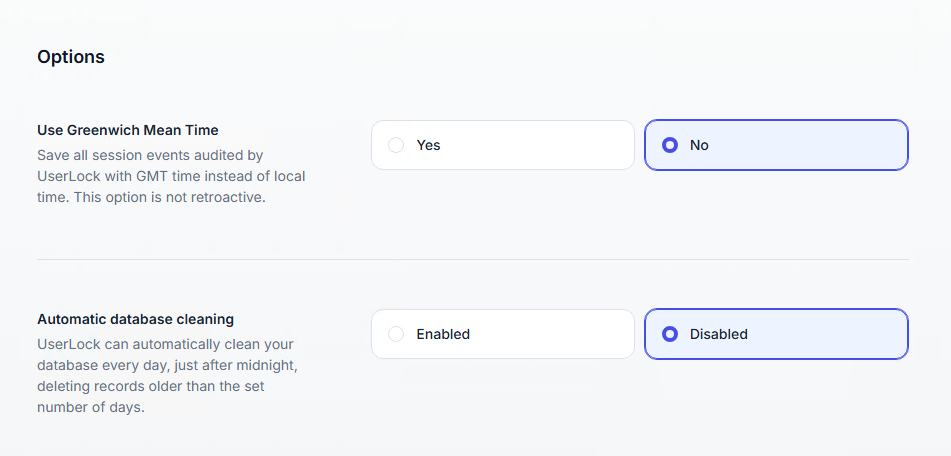
This option saves all audited events with GMT (UTC) instead of local time.
⚠️ Important
This option only changes how events are stored. Reports and filters do not convert times: with the option enabled, reports display event times in UTC (a logon at 10:00 in Paris in summer appears as 08:00). The option is not retroactive: if you change it after events have been recorded, the database contains both local and UTC times, and reports show a time shift at the change date.
By default, UserLock keeps all records indefinitely. Automatic cleaning deletes old records to limit database growth.
Option | Description |
|---|---|
Automatic database cleaning | Enables the daily cleaning. Disabled by default. |
Recording retention period | Number of days to keep records. Default: 60 days. |
Every day shortly after midnight (UserLock server local time), UserLock deletes the records older than the Recording retention period: logon events, user status history, and completed administrator actions with their results. Administrator actions still in progress are kept.
⚠️ Important
Cleaning is permanent and also deletes the history of administrator actions. Check your audit and compliance retention requirements before you enable it.
Use SQLite (default) for small and medium environments, and SQL Server (or SQL Server Express, or MySQL) for large volumes or when the primary and backup servers rely on a central database server.
Microsoft Access is a legacy database type, kept for compatibility only, and is no longer offered in the wizard. Migrate existing Access databases to SQLite.
Migrating data to an existing database deletes the UserLock tables it already contains (logon events, user status and admin actions) before copying the data. Cancelling the migration, or a failed migration, does not restore them. Other tables in that database are not affected. If you select an existing database without migrating data, its UserLock tables are kept.
If the production database uses SQL Server Authentication or a MySQL account, configure read-only access for reports. With SQLite, access relies on the file system permissions of the UserLock server: restrict access to the database file.
With SQLite, include the database file in the UserLock server's backups. With SQL Server or MySQL, host the database on a backed-up server.
Regularly monitor database size and performance, especially if you store large session histories.
See also
Database architecture: supported database types, versions and size limits, insertion engine, schema.
Define a production database: connect UserLock to a new, empty database.
Migrate the UserLock database: migration options, follow or cancel a migration, troubleshooting.
Server types: primary and backup servers.